
Bulk Product Editor Docs
Bulk Product Editor enables Commerce7 users to perform mass product updates via CSV file uploads. Update shipping settings, weights, costs, prices, and other attributes for multiple SKUs at once. Built in GO for lightweight, efficient processing.
Introduction
Welcome to the Bulk Product Editor documentation. This guide will walk you through performing bulk product updates for Commerce7.
Bulk Product Editor enables Commerce7 users to perform mass product updates via CSV file uploads. Update shipping settings, weights, costs, prices, and other attributes for multiple SKUs at once. Built in GO for lightweight, efficient processing.
Whether you need to update shipping settings, adjust pricing, or modify product attributes across your entire catalog, Bulk Product Editor makes it simple and efficient.
Features
Requirements
Before you begin, make sure you have:
- Commerce7 admin access
- Basic familiarity with CSV or XLSX filesExcel or Google Sheets works great
- Product data ready to updateSKUs and the fields you want to modify
Setup Instructions
Step 1: Install the App
Install the "Bulk Product Editor" app by MarsBytes from the Commerce7 App Store. The app integrates directly into your Commerce7 admin panel.
Step 2: Navigate to the App
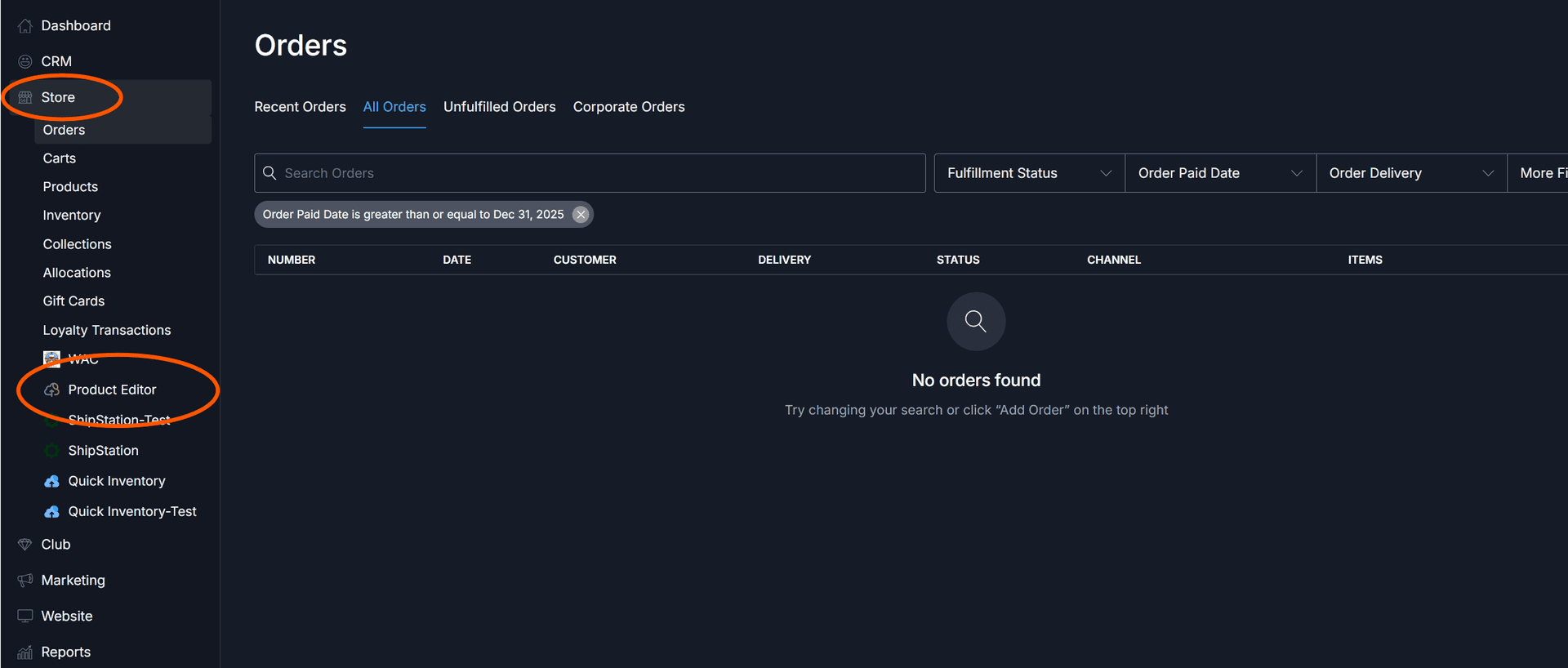
Once installed, navigate to the Store section in your Commerce7 admin panel, then click on "Product Editor" to open the app interface.
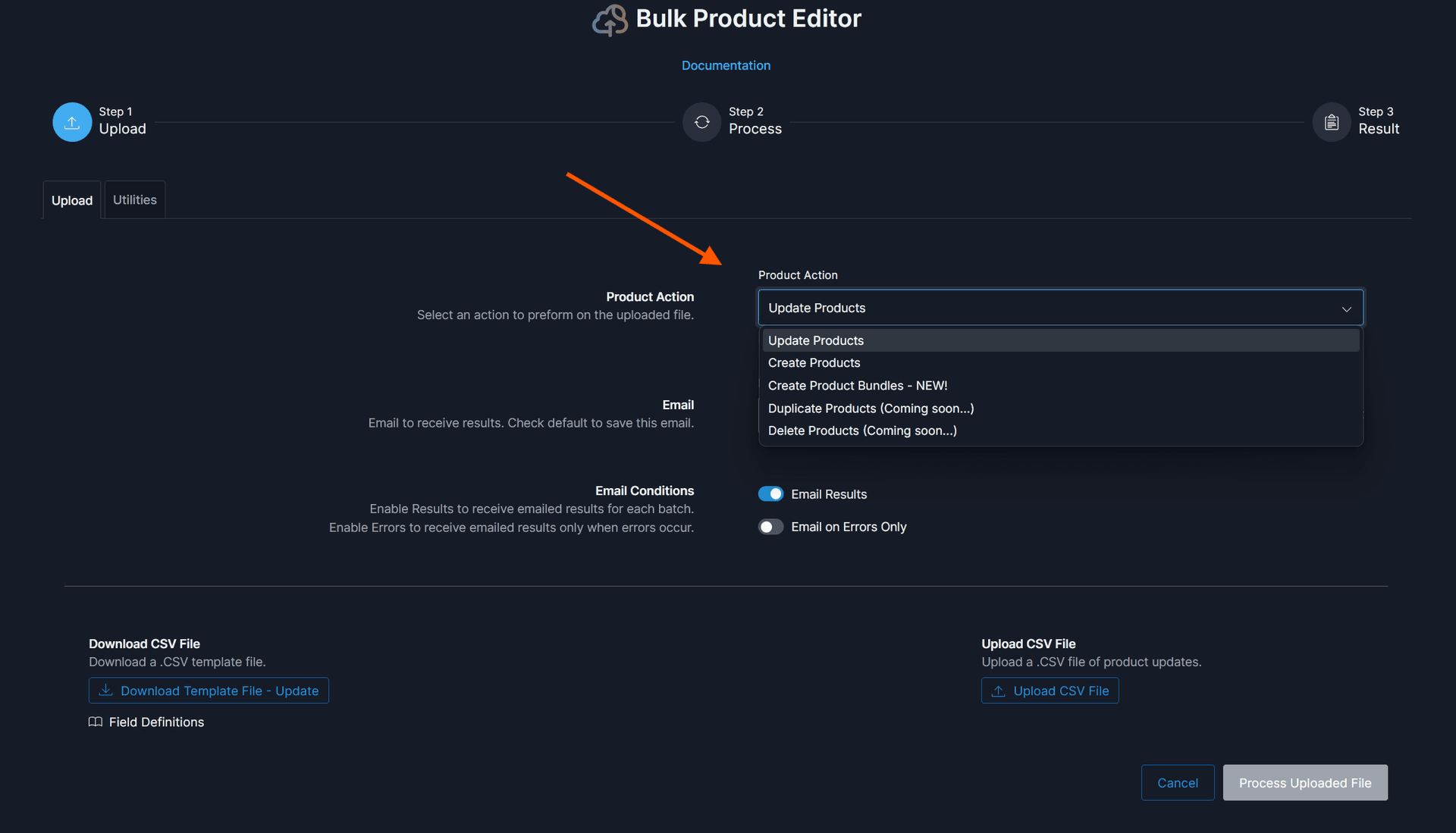
Step 3: Select Your Action
Choose the type of product update you want to perform. Bulk Product Editor supports various operations including updating shipping settings, weights, costs, prices, and other product attributes.
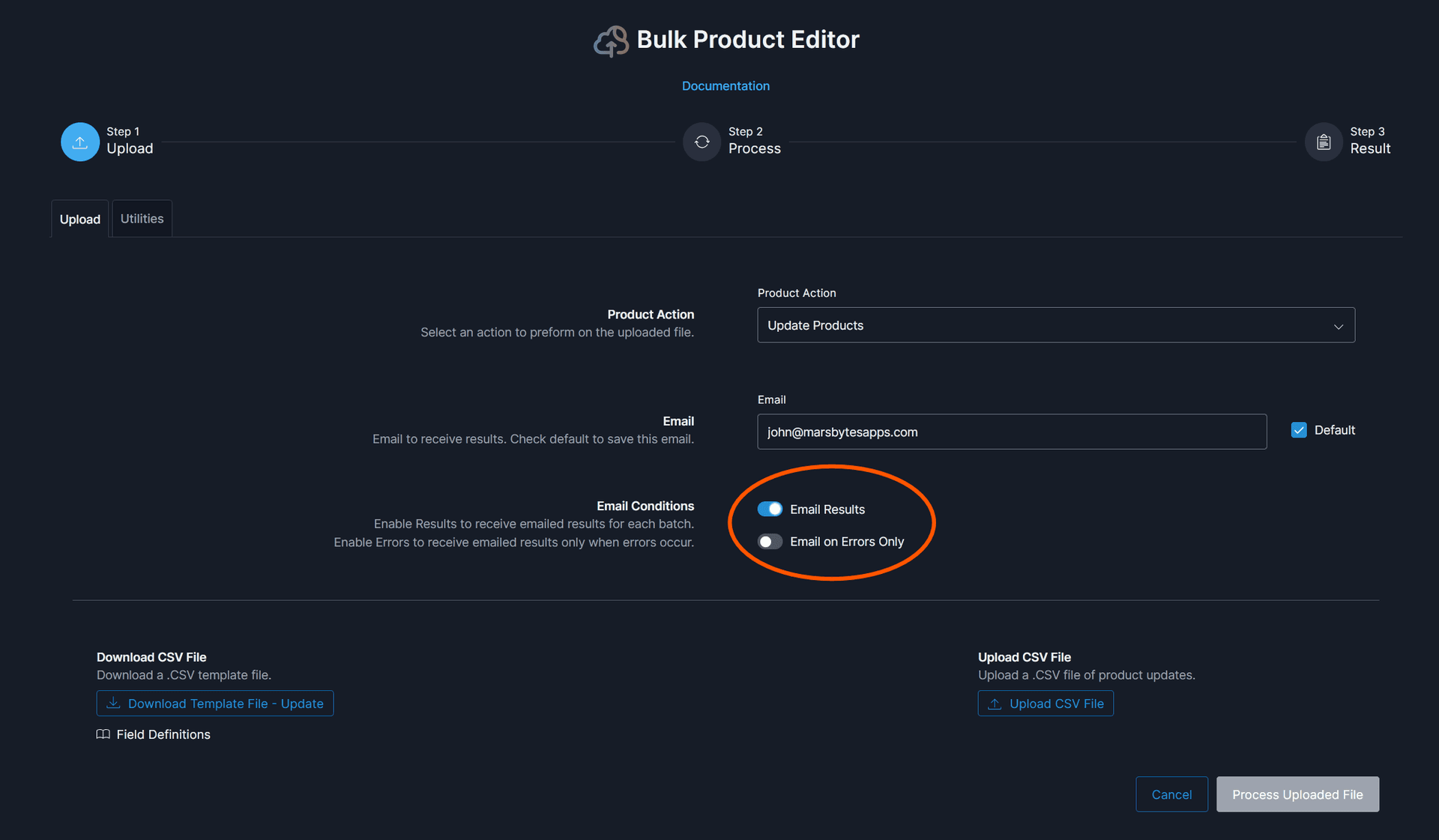
Step 4: Configure Email Notifications (Optional)
Set up email notifications to receive the results report automatically. This is especially useful for large batch operations that may take several minutes to process.
Step 5: Download CSV Template
Download the sample CSV file for your selected action. This template includes all required columns and example data to guide you.
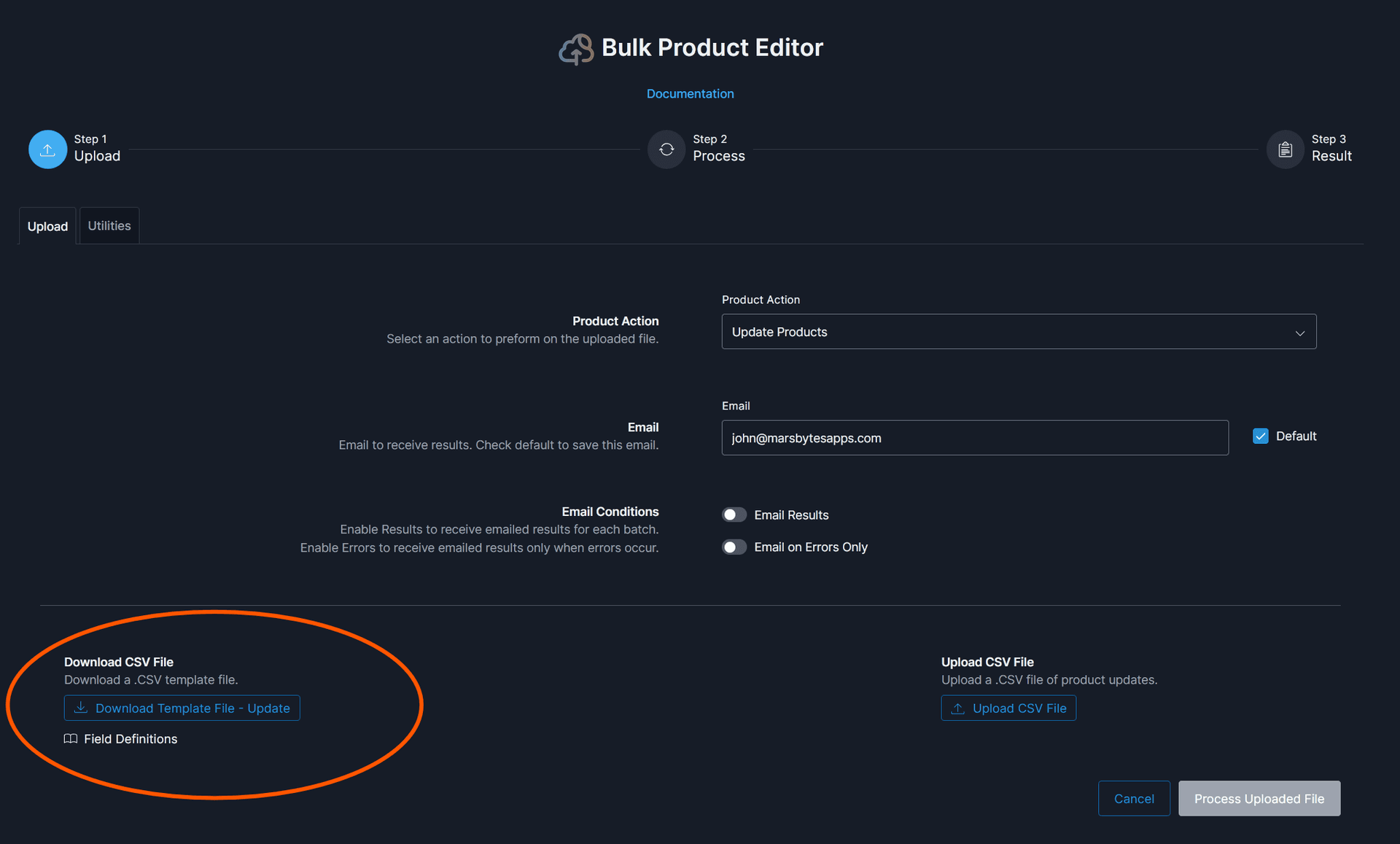
Open the template in Excel or Google Sheets, fill in your product updates, and save as CSV.
Step 6: Upload Your CSV File
Upload your completed CSV file using the file upload interface. The app will validate your data before processing.
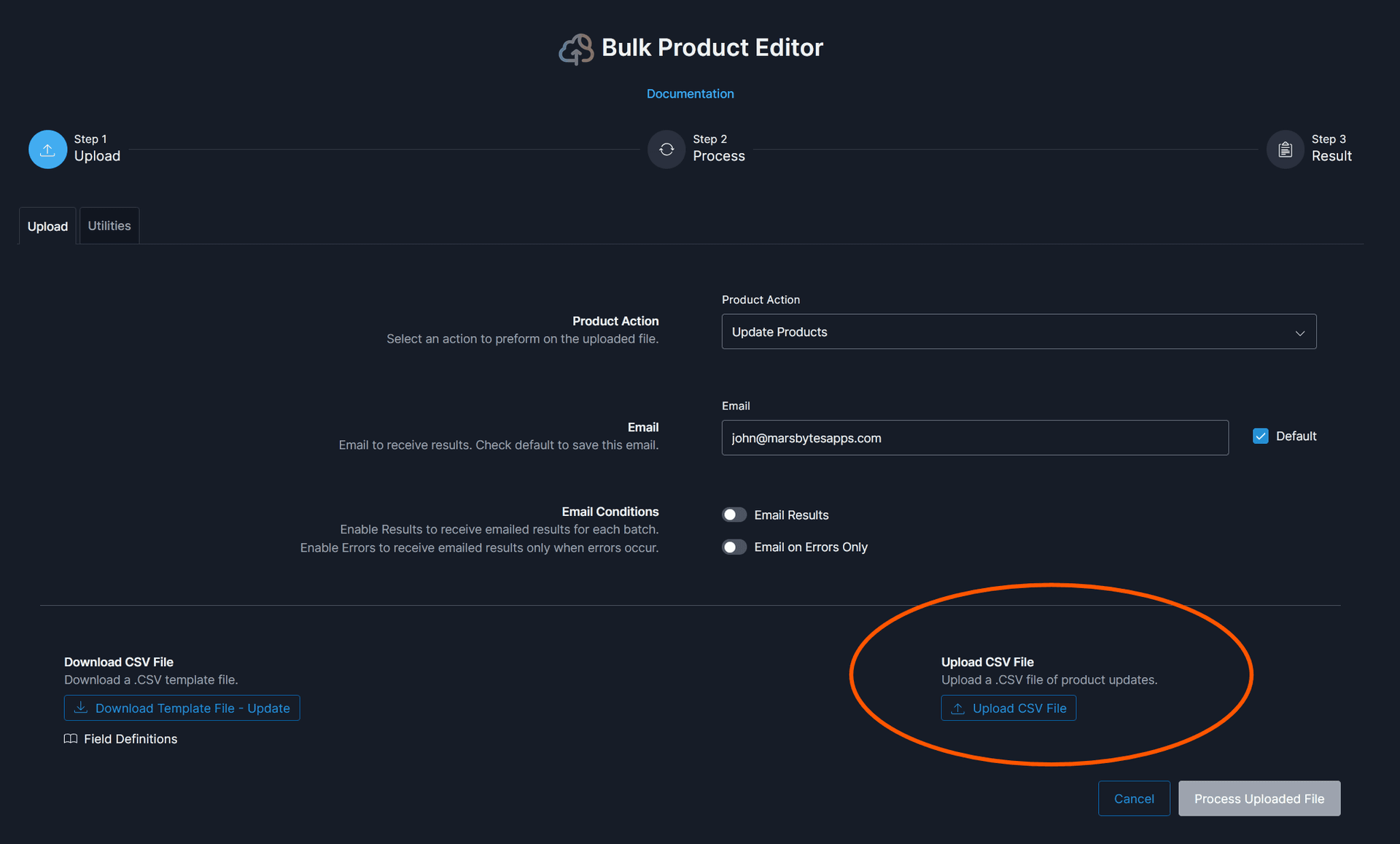
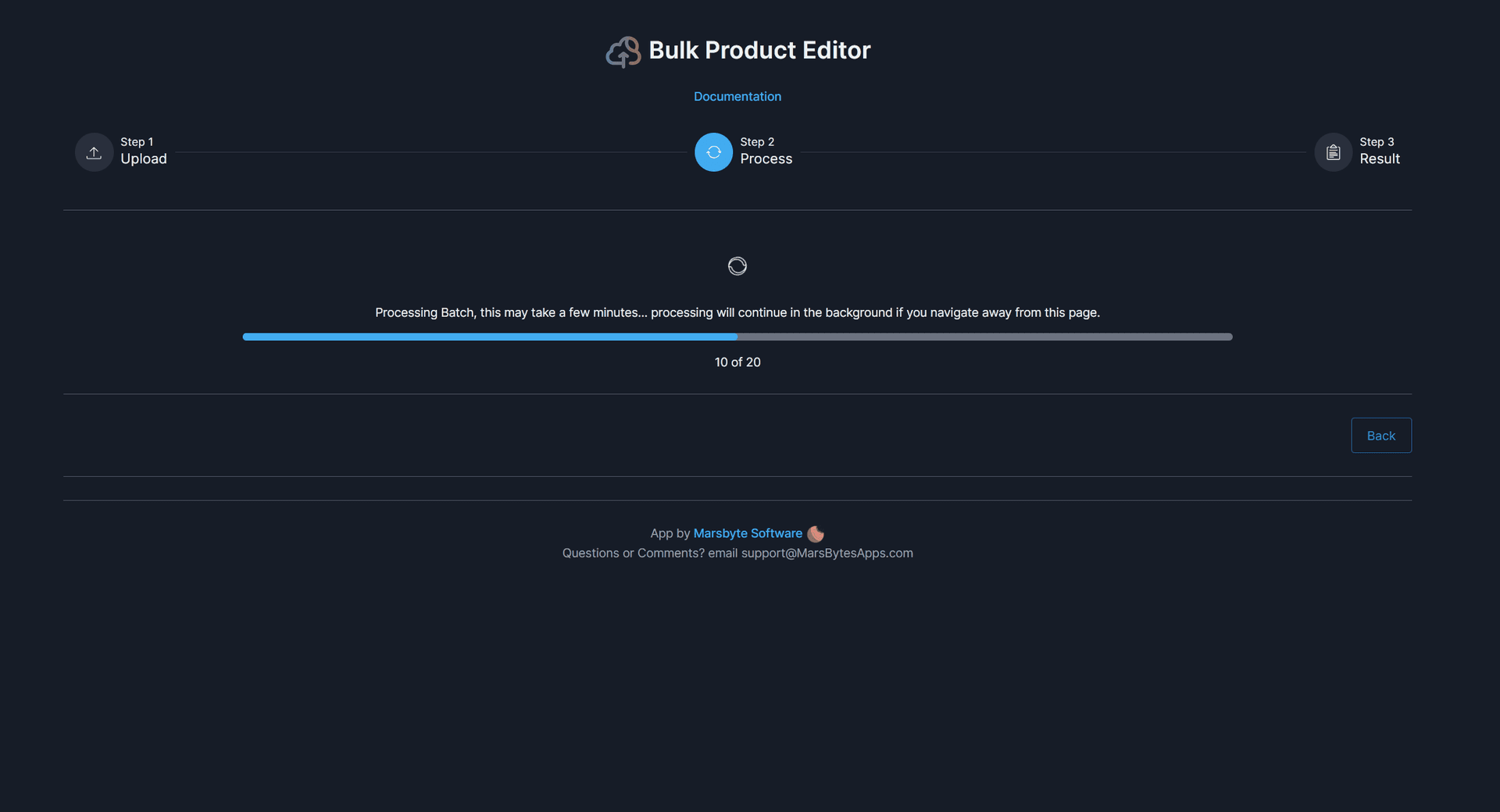
Step 7: Process and Monitor Progress
Click the process button to start updating your products. You'll see real-time progress as each product is updated. Large batches may take several minutes due to Commerce7's rate limits.
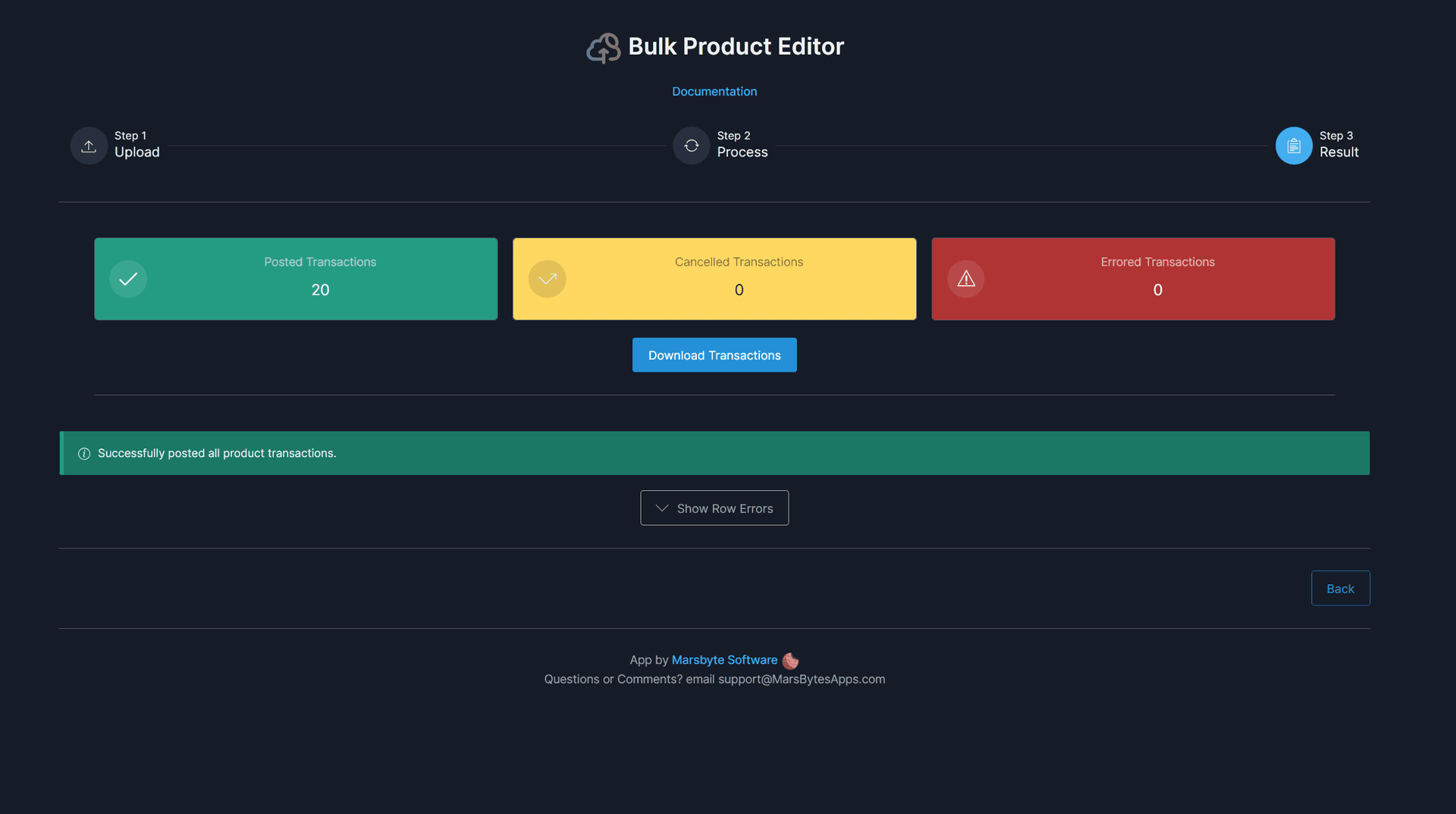
Once complete, you'll see a success summary showing how many products were updated successfully.
Step 8: Review and Handle Errors (If Any)
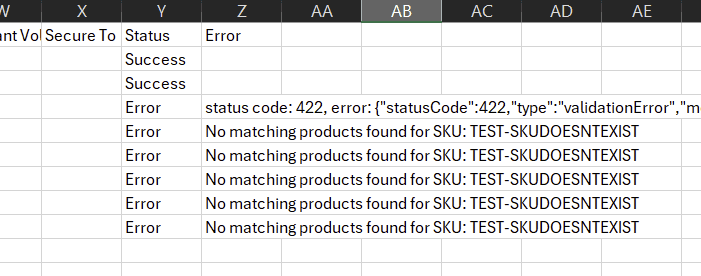
If any products fail to update, you can download a detailed results report that shows which rows succeeded and which failed, along with specific error messages.
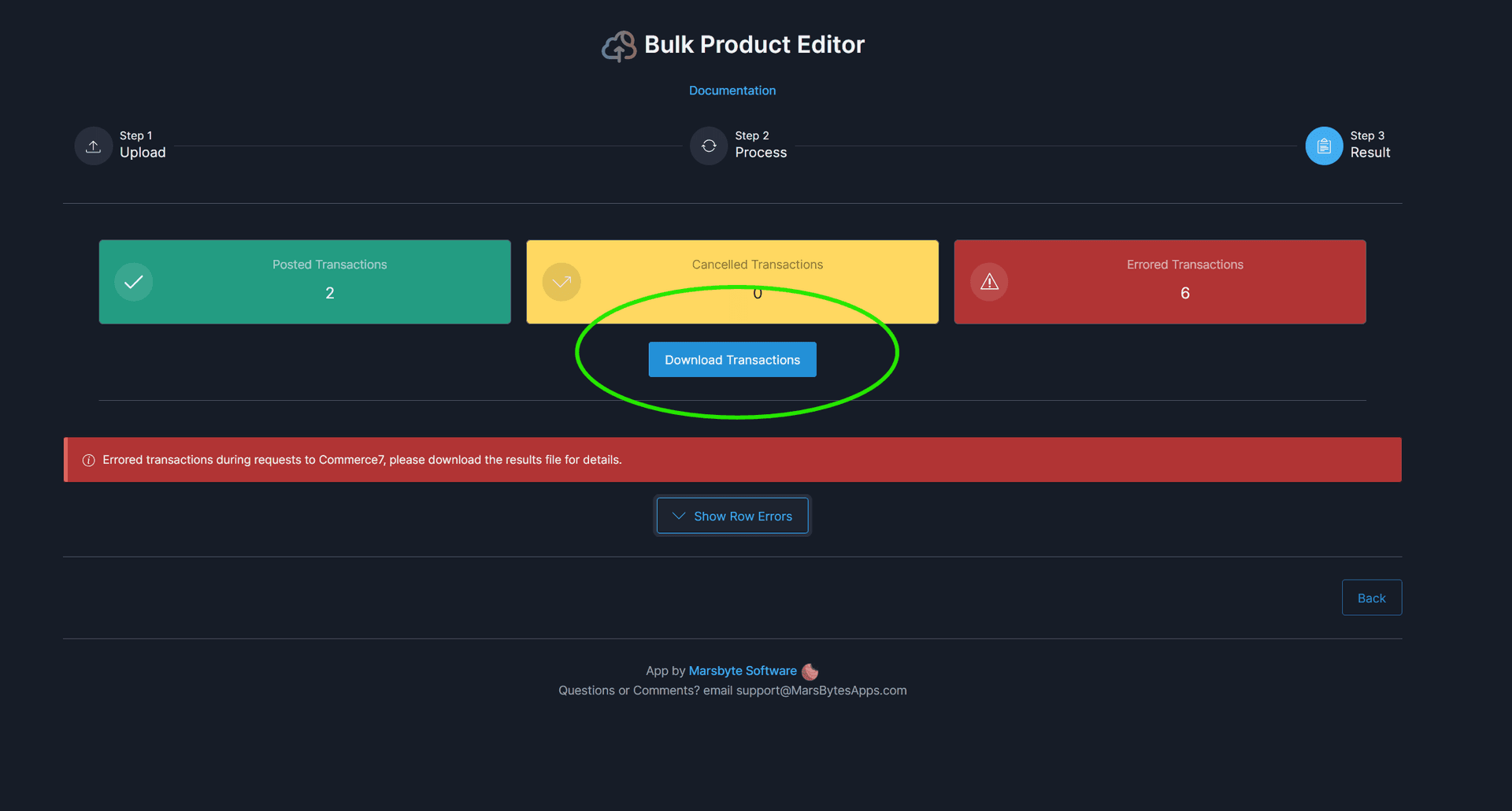
The downloaded spreadsheet will clearly mark which rows had errors:
You can also view errors directly in the app interface:
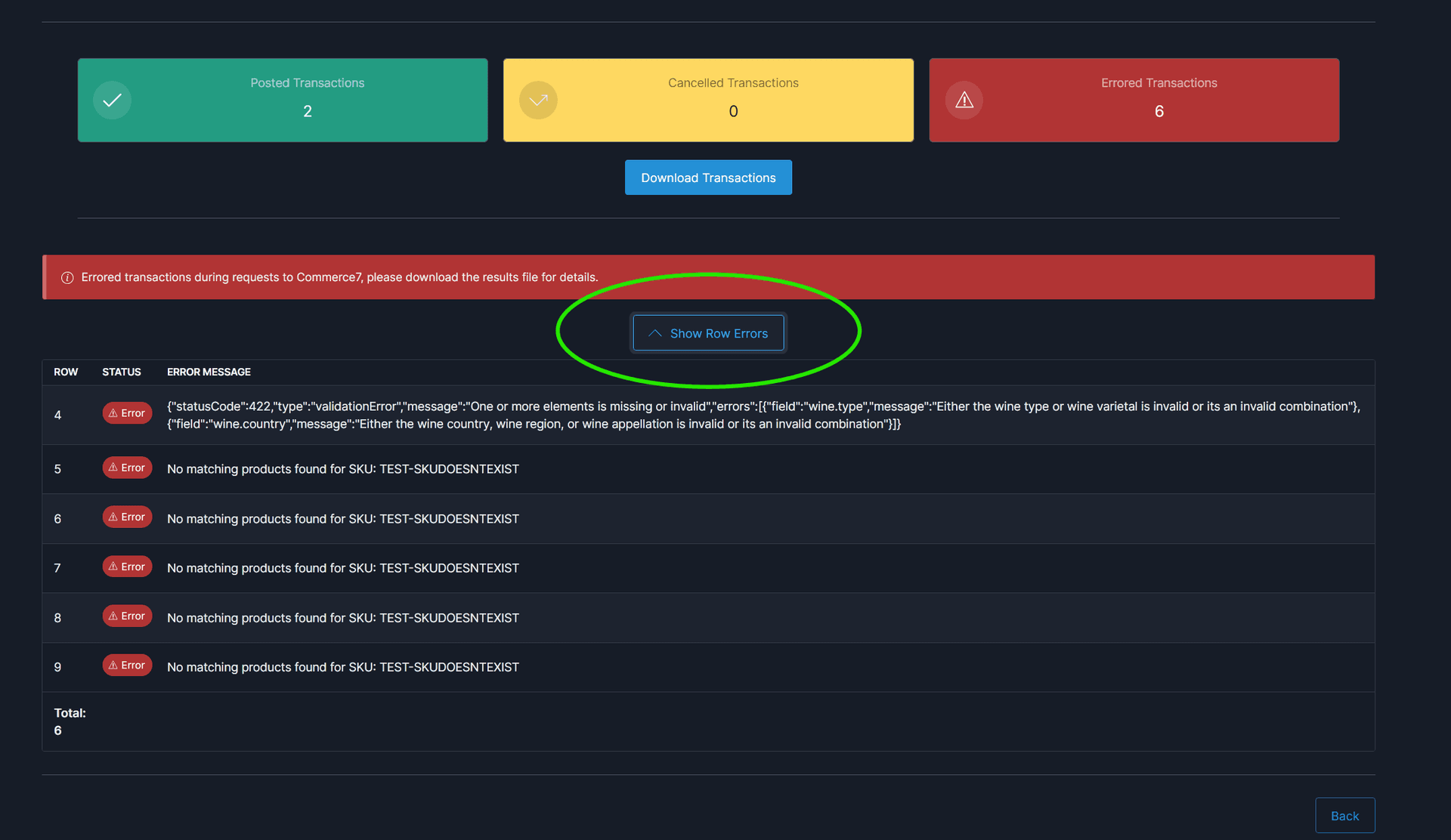
Thanks to the smart re-upload feature, you can correct the errors in your CSV and re-upload it. Successfully processed rows will automatically be skipped, so only the failed rows will be reprocessed.
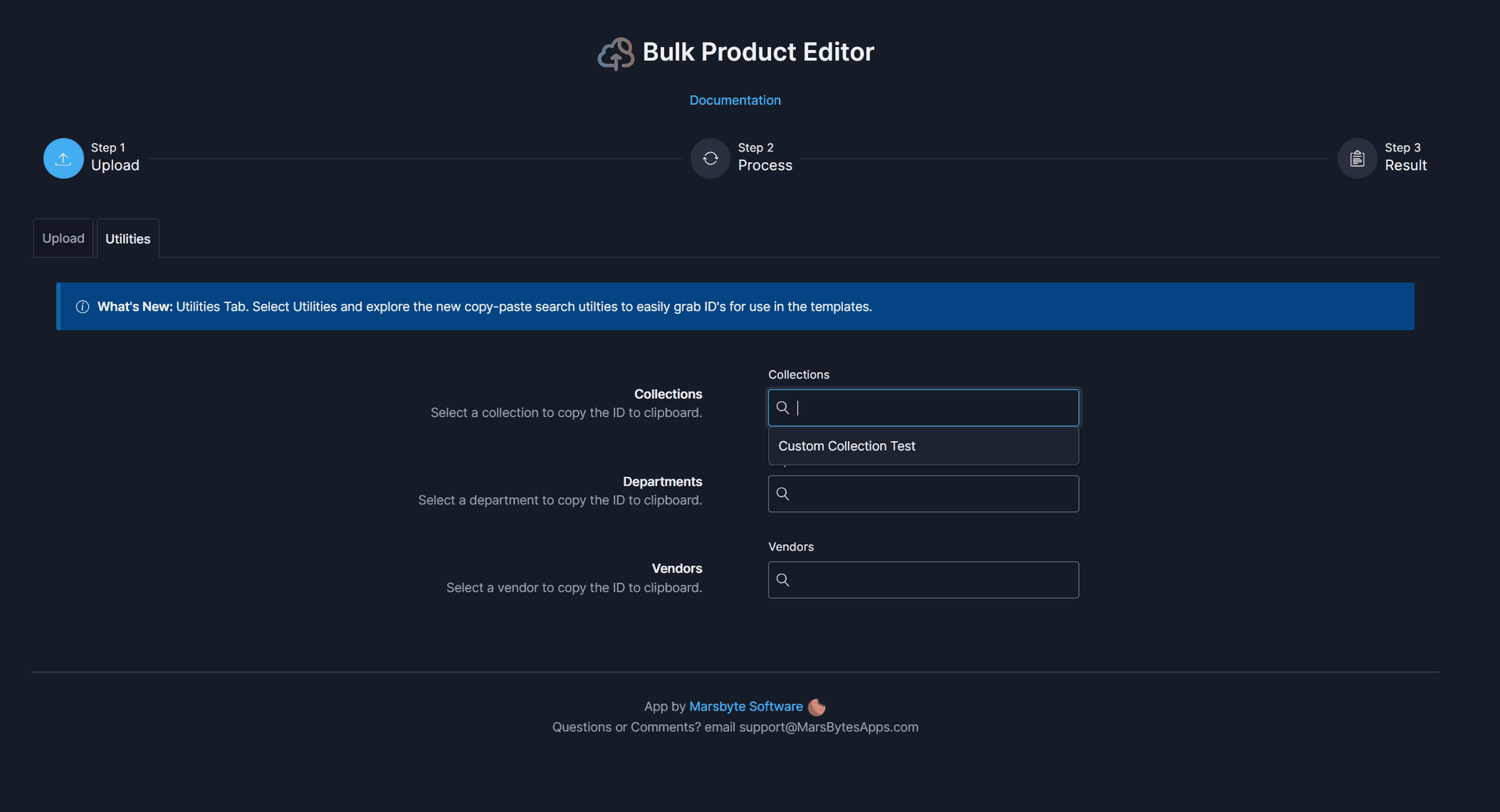
Step 9: Explore Additional Utilities
The app includes a Utilities tab with helpful tools and features to streamline your product management workflow.
Step 10: You're All Set!
That's it! You can now perform bulk product updates whenever needed. The app makes it easy to maintain your product catalog efficiently.
Pro tip: Keep your CSV templates organized by action type. This makes it faster to perform routine updates in the future.
Need Help?
If you run into any issues, contact us at support@marsbytesapps.com
Please include: your winery name, screenshots of any errors, and steps to reproduce the issue.