
Custom Loyalty Points Docs
Custom Loyalty Points allows you to define custom criteria to control how and when loyalty points are applied to customer accounts within Commerce7. Whether you need to limit rewards to specific club tiers, restrict points to certain SKUs, adjust rewards for club packages, or use metadata to influence points earned — this app gives you the flexibility to tailor your loyalty program beyond Commerce7's default behavior.
Introduction
Welcome to the Custom Loyalty Points documentation. This guide will walk you through setting up customized loyalty point logic for your Commerce7 store.
Custom Loyalty Points allows you to define custom criteria to control how and when loyalty points are applied to customer accounts within Commerce7. Whether you need to limit rewards to specific club tiers, restrict points to certain SKUs, adjust rewards for club packages, or use metadata to influence points earned — this app gives you the flexibility to tailor your loyalty program beyond Commerce7's default behavior.
Once configured, the app automatically applies and removes loyalty points based on your custom rules whenever orders are placed, cancelled, or refunded — with detailed transaction notes for full traceability.
Features
- Requires developer setup after installation
Requirements
Before you begin, make sure you have:
- Commerce7 admin access
- Loyalty by Commerce7 installedThe official Loyalty extension must be installed on your tenant
- Loyalty activated in Commerce7 settingsEnsure Loyalty is enabled before installing this app
- Base tier set to 0 points per dollarUpdate the base tier in Loyalty Settings to earn 0 points per dollar so that Custom Loyalty Points controls all point logic
Setup Instructions
Step 1: Install Loyalty by Commerce7
If you haven't already, install the official Loyalty by Commerce7 extension from the Commerce7 App Store. This is a prerequisite for Custom Loyalty Points to function.
Step 2: Activate Loyalty and Configure Base Tier
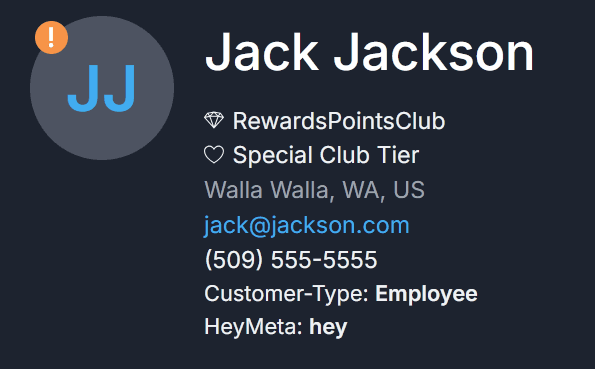
Activate Loyalty in your Commerce7 settings. Then navigate to your Loyalty Settings and update the base tier to earn 0 points per dollar. This ensures that the default loyalty behavior doesn't conflict with your custom point rules.
Step 3: Install Custom Loyalty Points
Search for "Custom Loyalty Points" on the Commerce7 App Store and install the app. Once installed, the specific SKUs and rules provided to the developer during setup will automatically begin earning reward points at the requested rate.
Step 4: Verify Points Are Being Applied
After installation, place a test order with a qualifying SKU to verify that points are being applied correctly. You can check a customer's Loyalty tab to see point transactions along with notes referencing the order number.
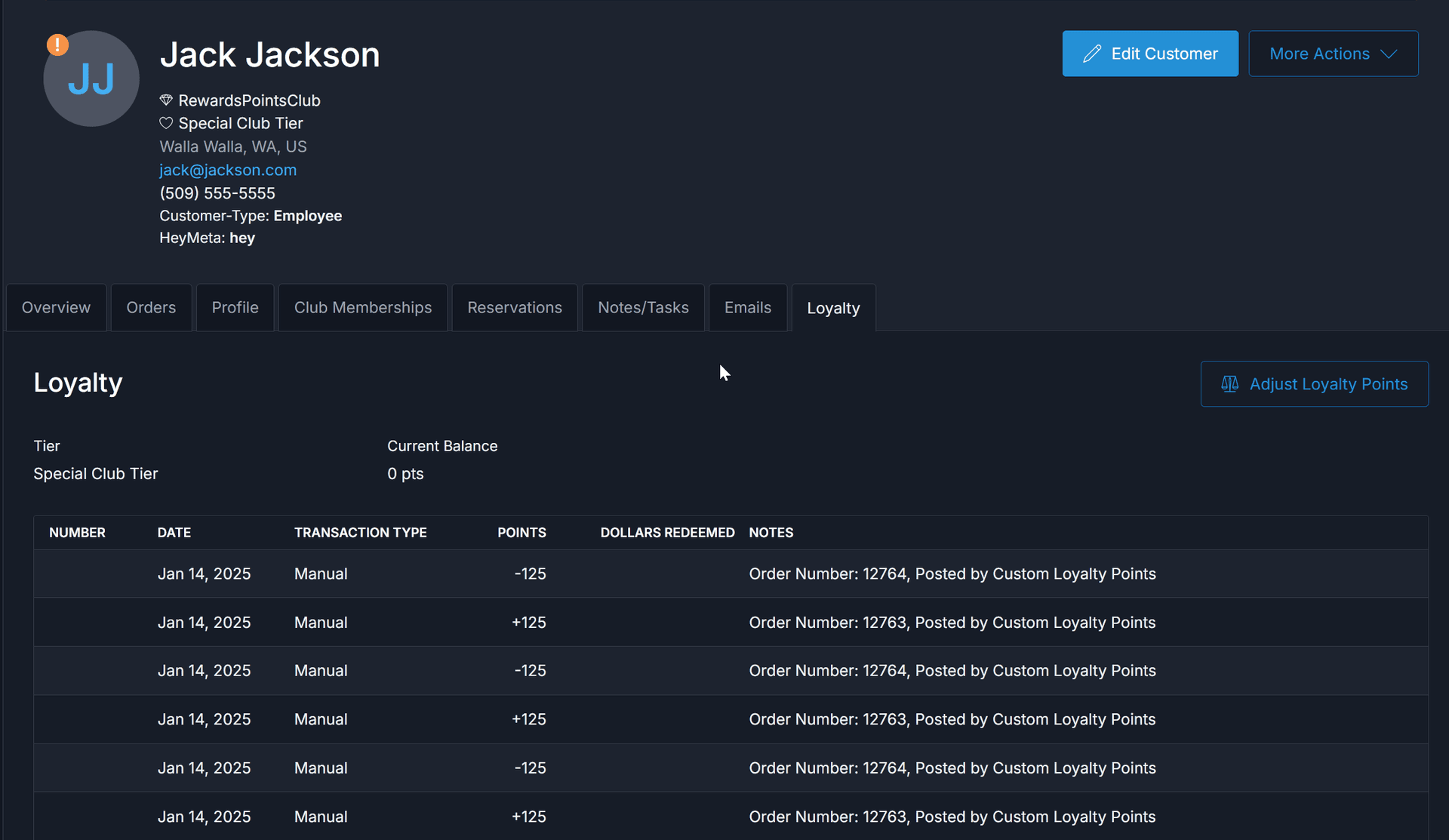
Each transaction includes detailed notes showing the order number and that it was posted by Custom Loyalty Points, making it easy to track and audit point activity.

Step 5: You're All Set!
That's it! Custom Loyalty Points will now automatically manage loyalty points based on your configured rules. Points are applied when qualifying orders are placed and removed when orders are cancelled or refunded.
Note: If you need to adjust which SKUs earn points, modify club tier restrictions, or change point rates, contact the developer to update your configuration.
Need Help?
If you run into any issues, contact us at support@marsbytesapps.com
Please include: your winery name, screenshots of any errors, and steps to reproduce the issue.