
Quick Inventory Docs
Quick Inventory is a bulk inventory management tool designed for Commerce7 users. Execute multiple inventory transactions seemlessly through CSV file uploads, eliminating tedious manual entry. Built with GO for rapid processing and reliable performance.
Introduction
Welcome to the Quick Inventory documentation. This guide will walk you through using the bulk inventory management tool for Commerce7.
Quick Inventory is a bulk inventory management tool designed for Commerce7 users. Execute multiple inventory transactions seemlessly through CSV file uploads, eliminating tedious manual entry. Built with GO for rapid processing and reliable performance.
With Quick Inventory, you can perform inventory operations across hundreds of SKUs in seconds, eliminating the need for repetitive manual data entry. Simply prepare a CSV file and let the app handle the rest.
Features
Requirements
Before you begin, make sure you have:
- Commerce7 admin access
- Basic familiarity with CSV filesExcel or Google Sheets works great
- Inventory data ready to processProduct IDs, quantities, and any relevant transaction details
Setup Instructions
Step 1: Install the App
Install the "Quick Inventory" app by MarsBytes from the Commerce7 App Store. The app integrates directly into your Commerce7 admin panel.
Step 2: Navigate to the App
Once installed, navigate to the Store section in your Commerce7 admin panel. You'll find Quick Inventory listed among your installed apps.

Click on Quick Inventory to open the app interface.

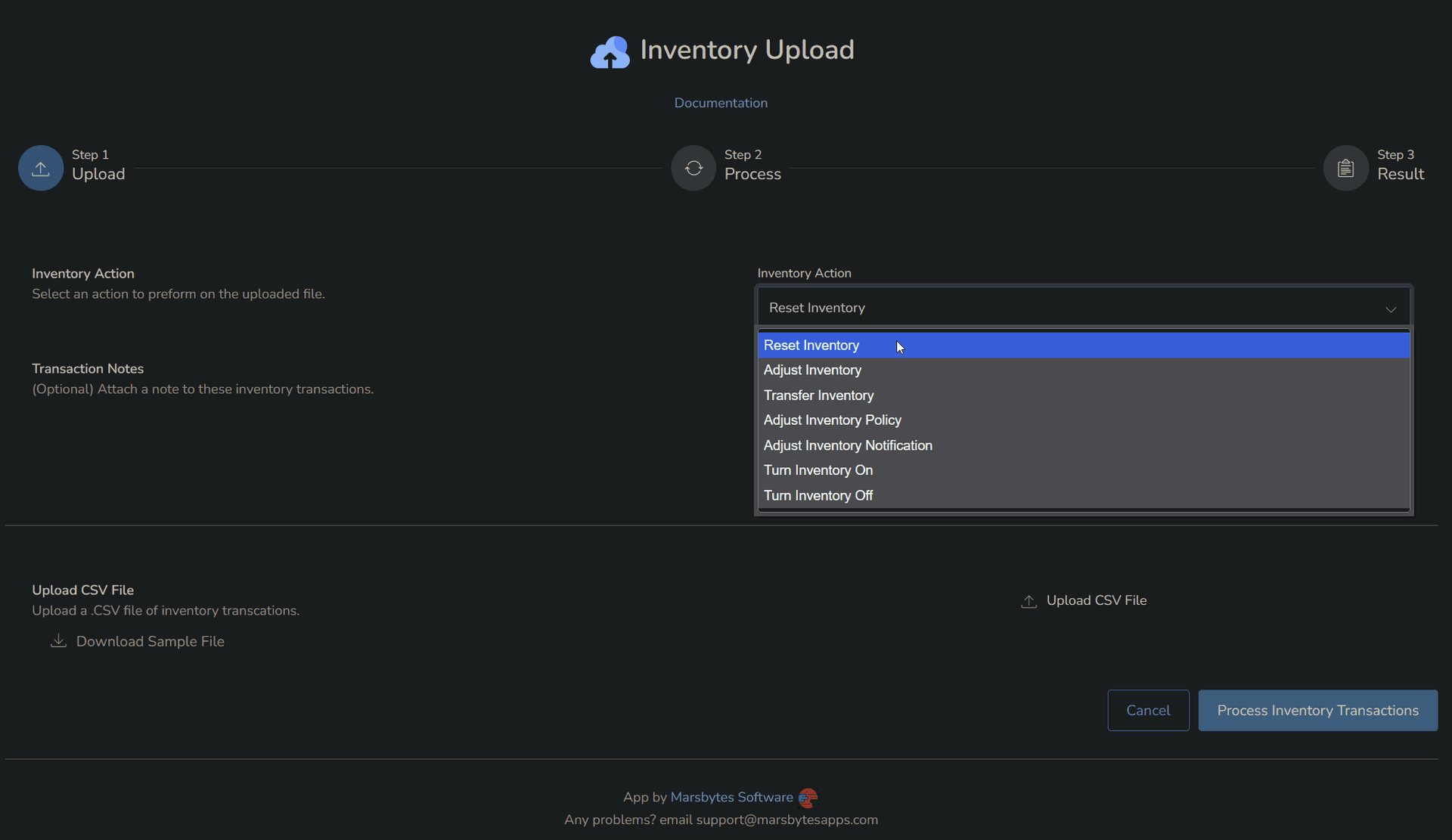
Step 3: Select Your Inventory Action
Choose the type of inventory operation you want to perform. Quick Inventory supports multiple transaction types including adjustments, transfers, resets, and bulk updates to inventory settings.
Step 4: Download Sample CSV Template
Download the sample CSV file for your selected action. This template shows you exactly which columns are required and provides examples of proper formatting.
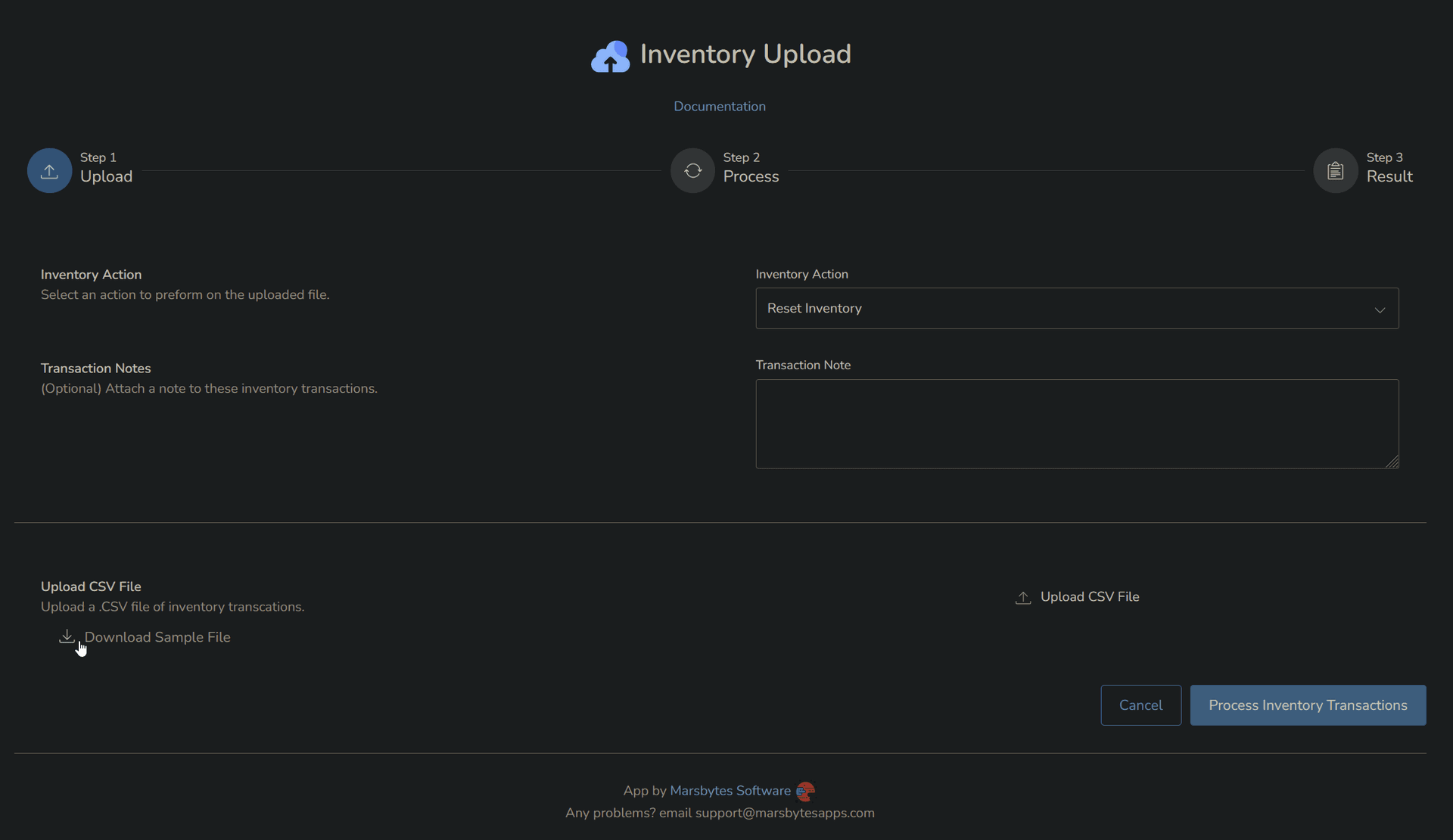
Open the sample file in Excel or Google Sheets, replace the example data with your actual inventory data, and save as CSV.
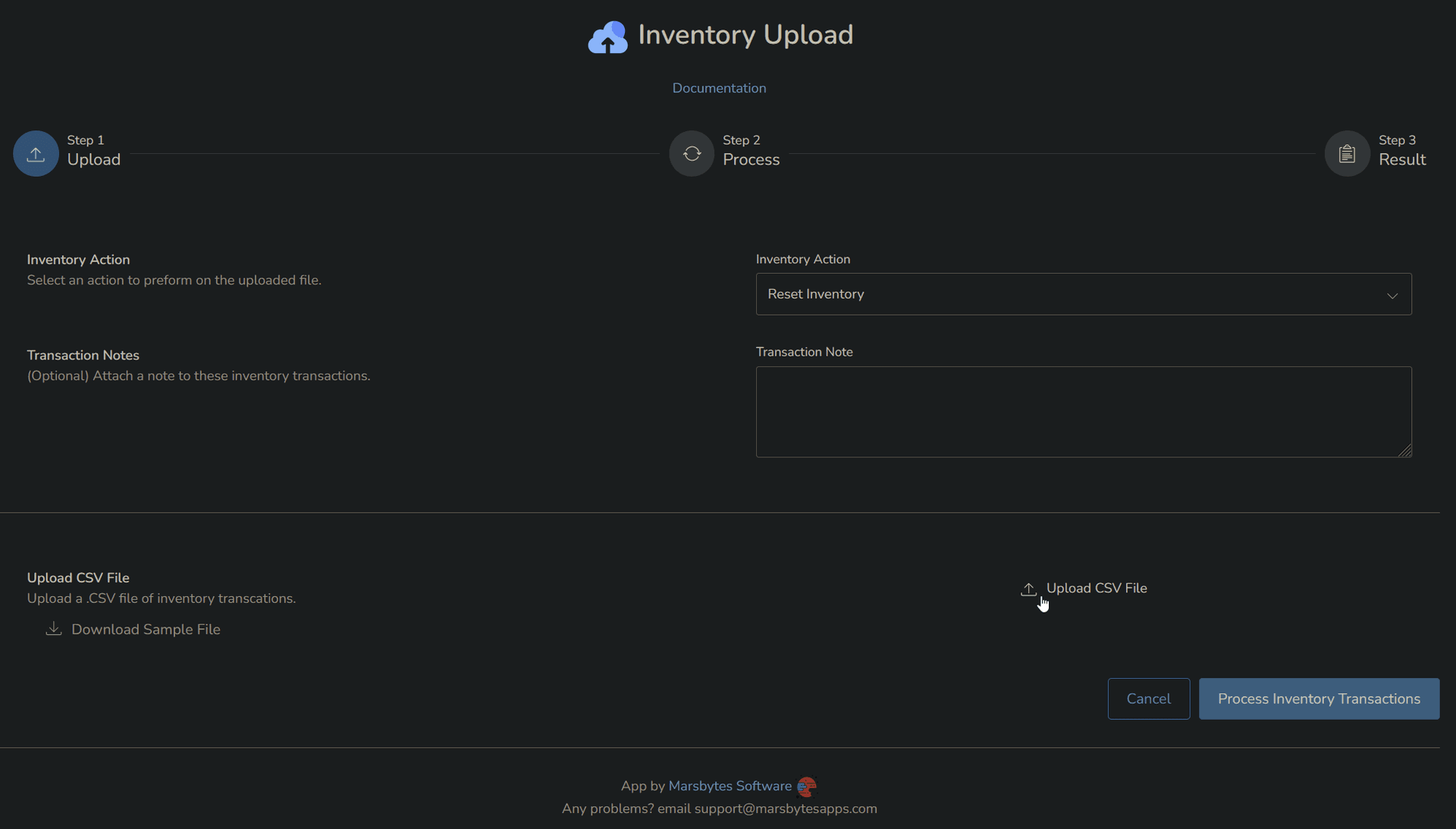
Step 5: Upload Your CSV File
Once your CSV is ready, upload it using the file upload interface. You can optionally add notes to document the purpose of this transaction for your records.
Step 6: Process and Review Results
Click the process button to execute your inventory transactions. The app will validate your data and process each row.
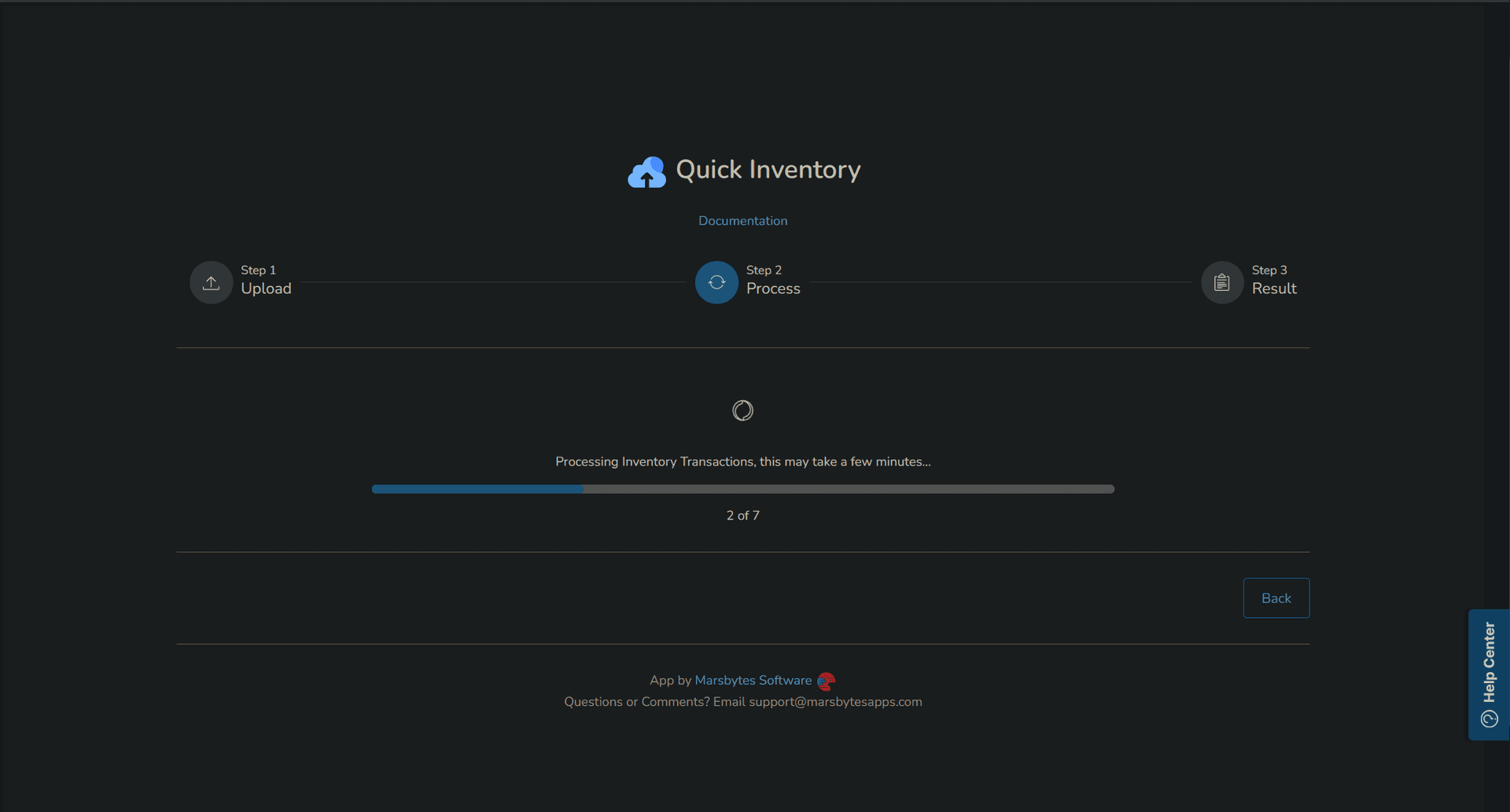
Once complete, you'll see a success summary showing how many transactions were processed successfully.
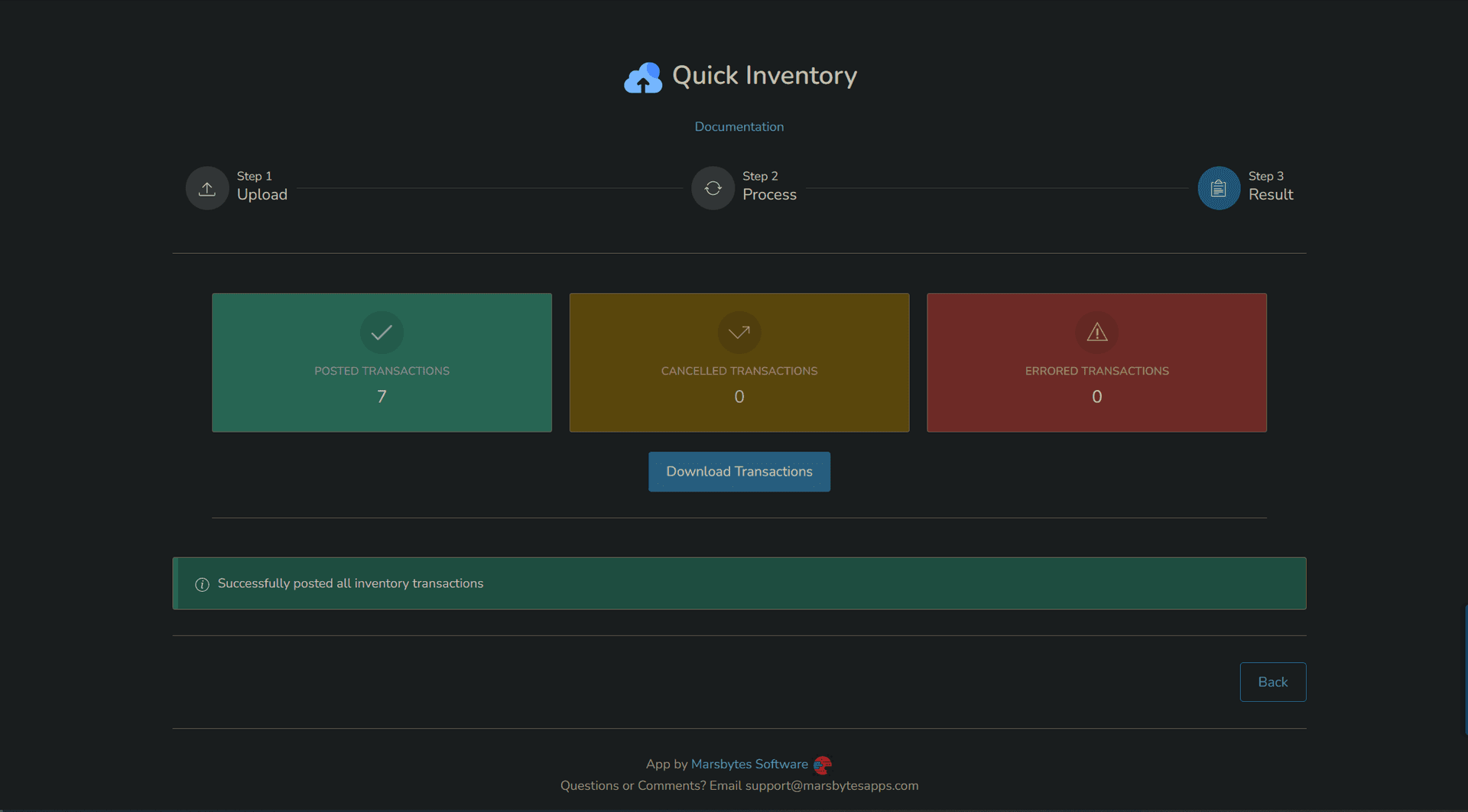
Step 7: Handle Errors (If Any)
If any rows contain errors, the app provides detailed error reporting. You can download a results report that shows which transactions succeeded and which failed, along with specific error messages.
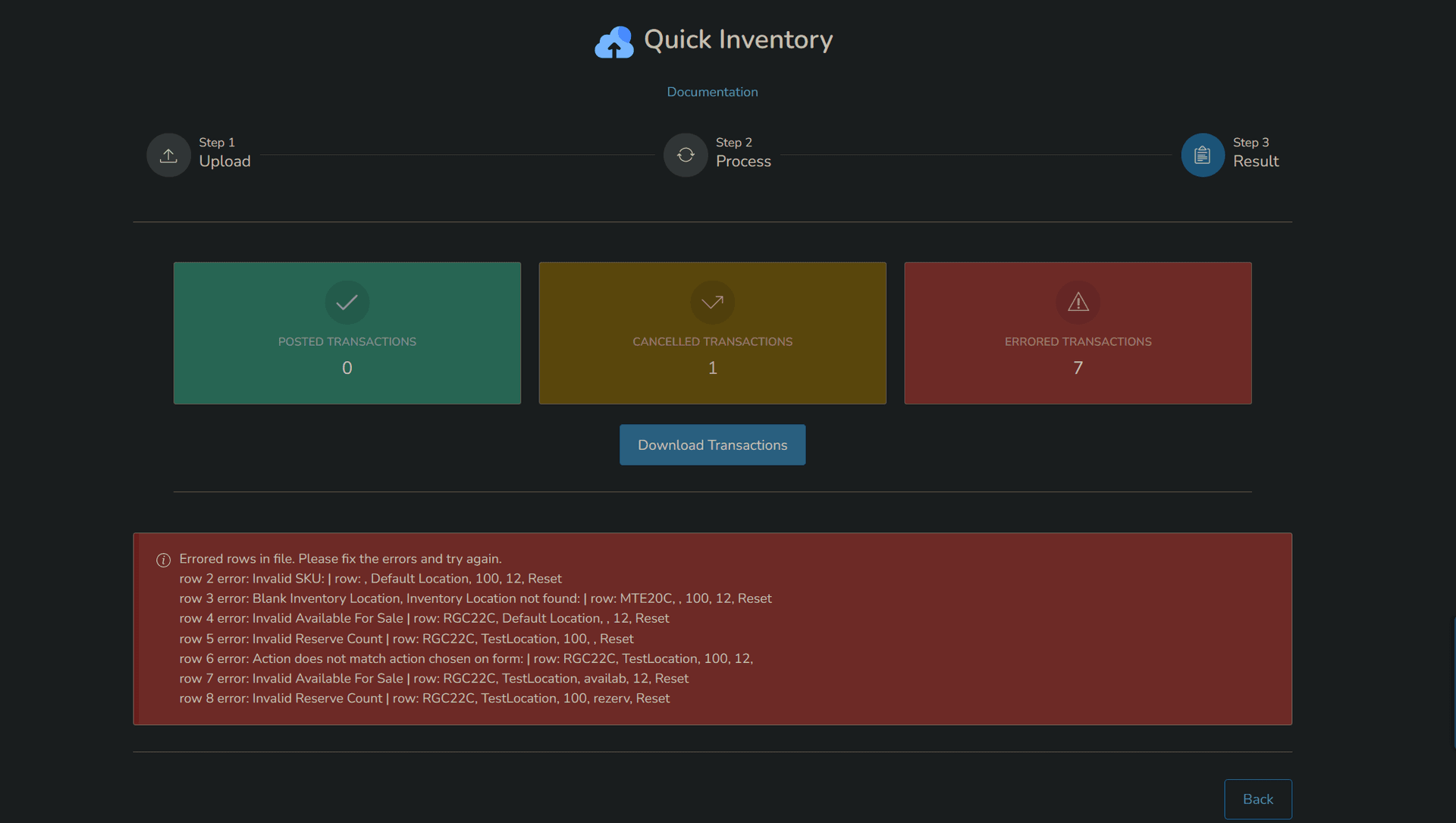
Review the error messages, correct the issues in your CSV file, and re-upload to complete the remaining transactions.
Step 8: You're All Set!
That's it! You can now perform bulk inventory operations whenever needed. Simply repeat the process with new CSV files for different transaction types.
Pro tip: Save your CSV templates for future use. This makes it easy to quickly perform similar operations in the future.
Need Help?
If you run into any issues, contact us at support@marsbytesapps.com
Please include: your winery name, screenshots of any errors, and steps to reproduce the issue.