ShipStation Custom Store Docs
Updating Your API Keys
How to generate API keys in ShipStation and enter them in Commerce7 to enable advanced features like order status sync and auto-cancel.
Overview
ShipStation API keys allow the app to communicate directly with your ShipStation account. Adding both your V1 and V2 keys unlocks advanced features including checking live order fulfillment status from Commerce7 and automatically canceling orders in ShipStation when they are refunded in Commerce7.
Before you begin, make sure you have:
- Commerce7 admin access
- ShipStation account access with permission to view API settingsOpen ShipStation API Settings →
Navigate to API Settings
Open ShipStation Settings
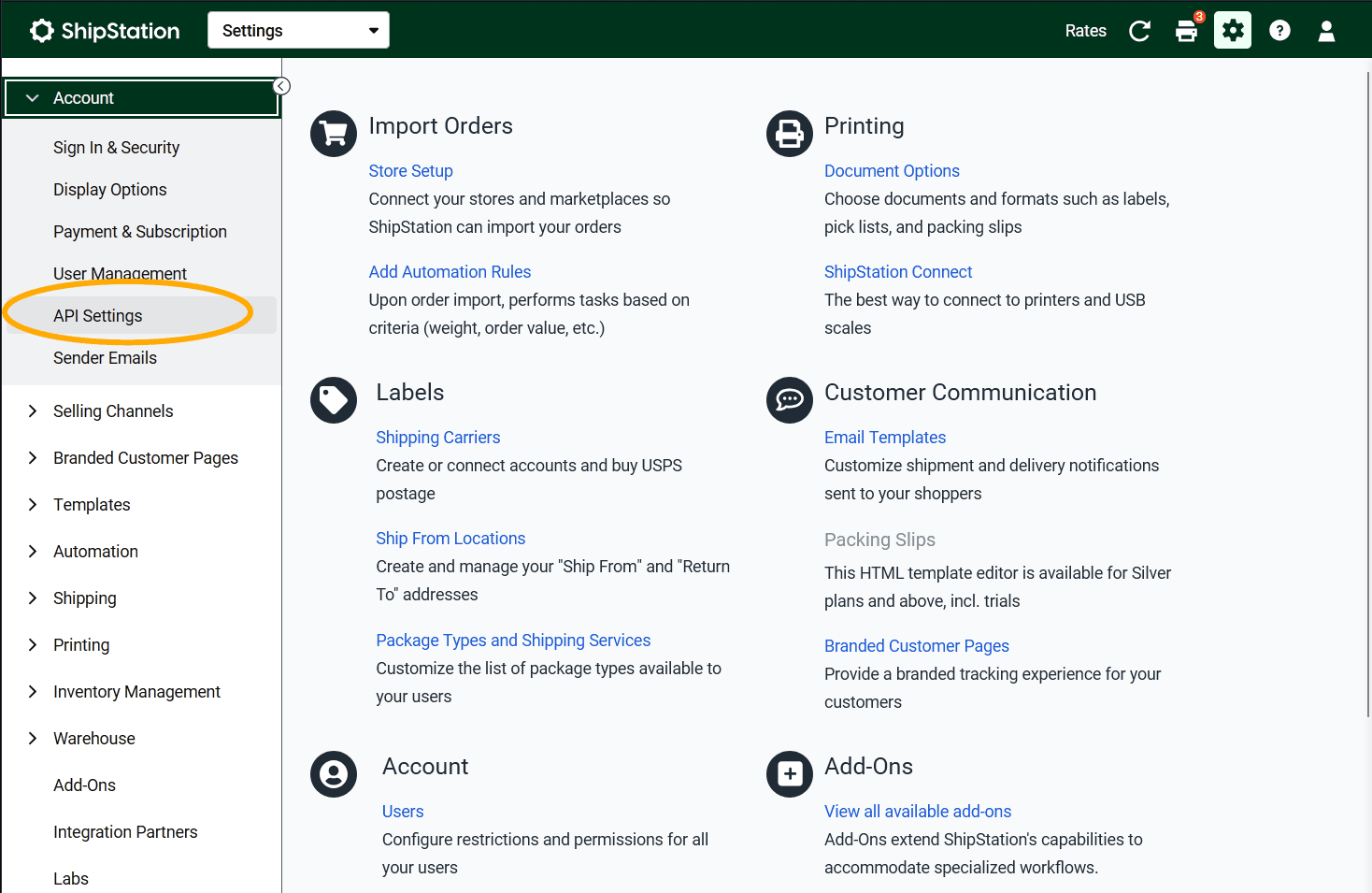
Log into ShipStation and open Settings. In the left sidebar, expand the Account section and click API Settings. You can also navigate there directly using the link in the requirements above.
Generate API Keys
Step 1: Select API Version and Generate
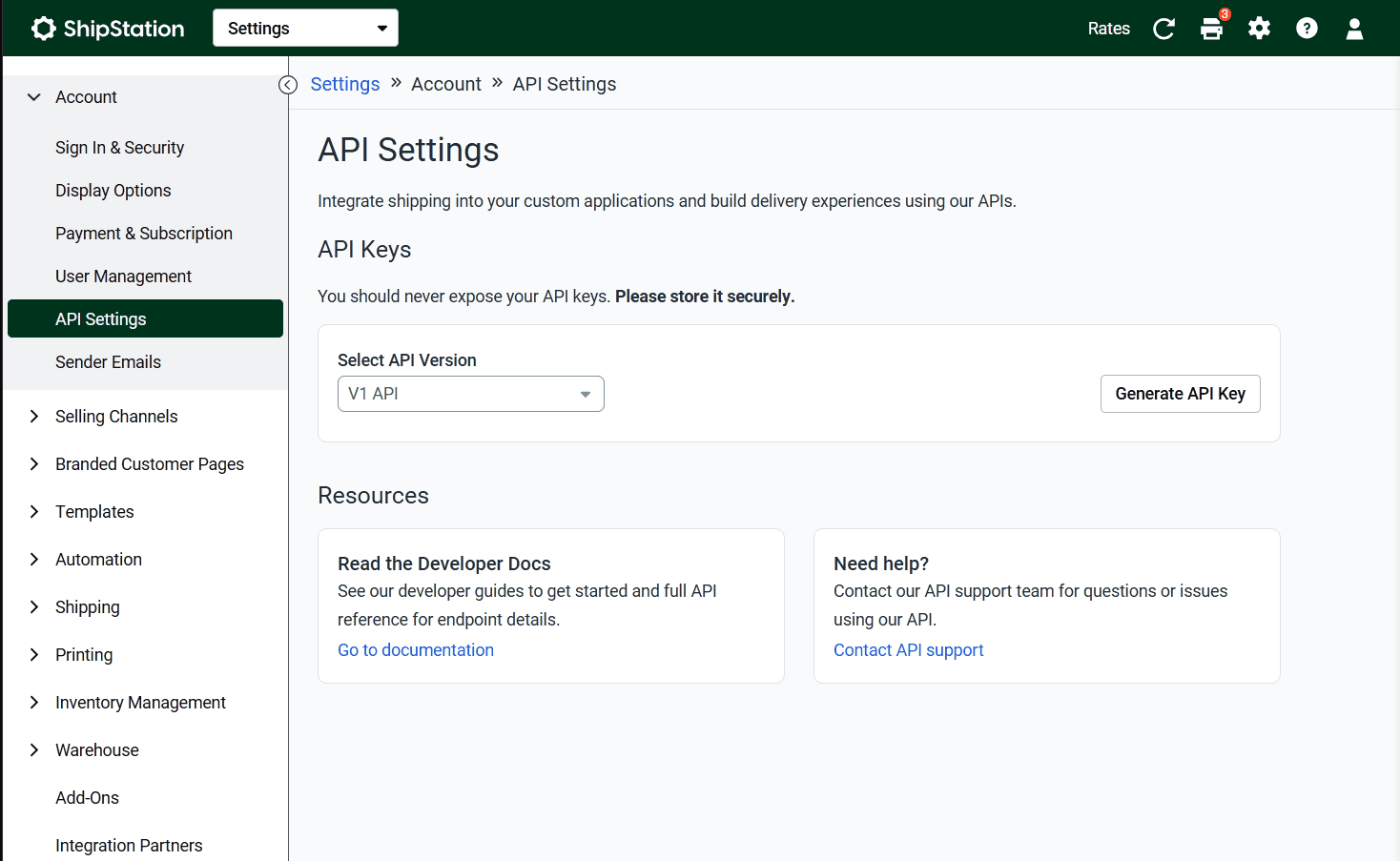
On the API Settings page you'll see a Select API Version dropdown set to V1 API by default. Click Generate API Key to begin.
Step 2: Set Expiration and Confirm
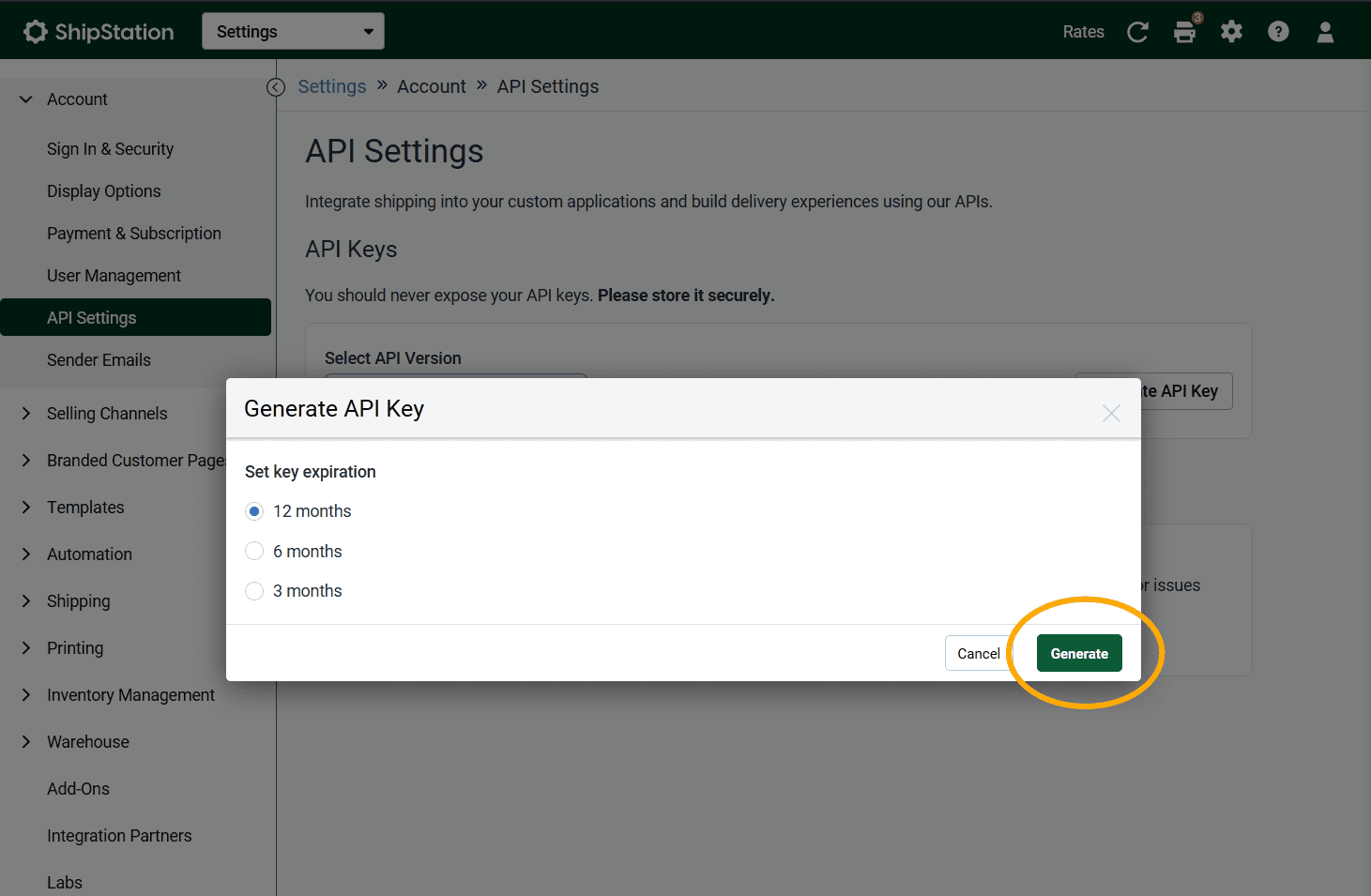
A modal will appear asking you to set a key expiration. Select your preferred duration and click Generate. Copy the key that is displayed — you won't be able to view it again after closing the modal.
Step 3: Repeat for V2
Switch the Select API Version dropdown to V2 API and repeat the same process to generate your V2 key. Keep both keys handy — you'll need them in the next steps.
Open ShipStation Setup
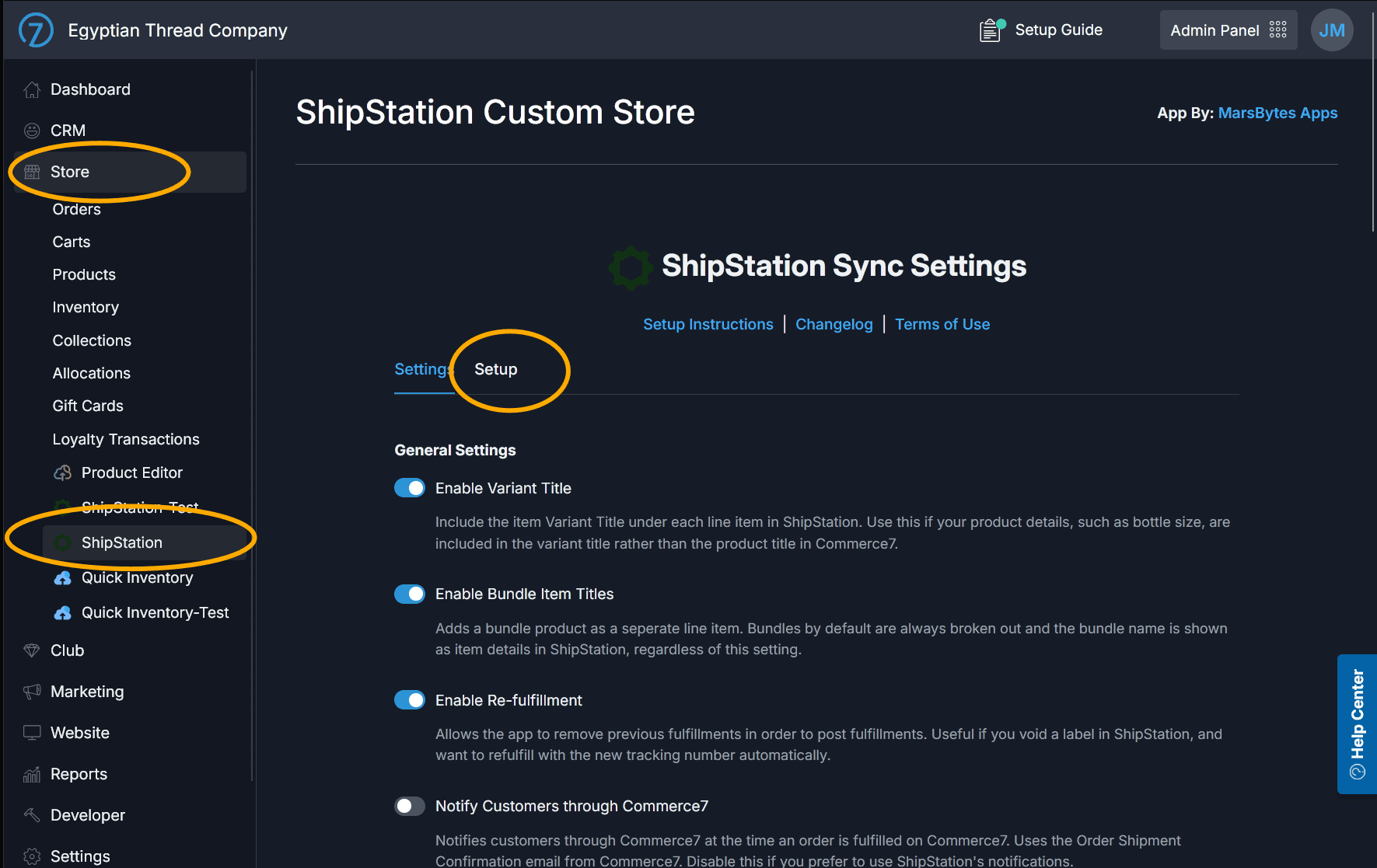
Navigate to the Setup Tab in Commerce7
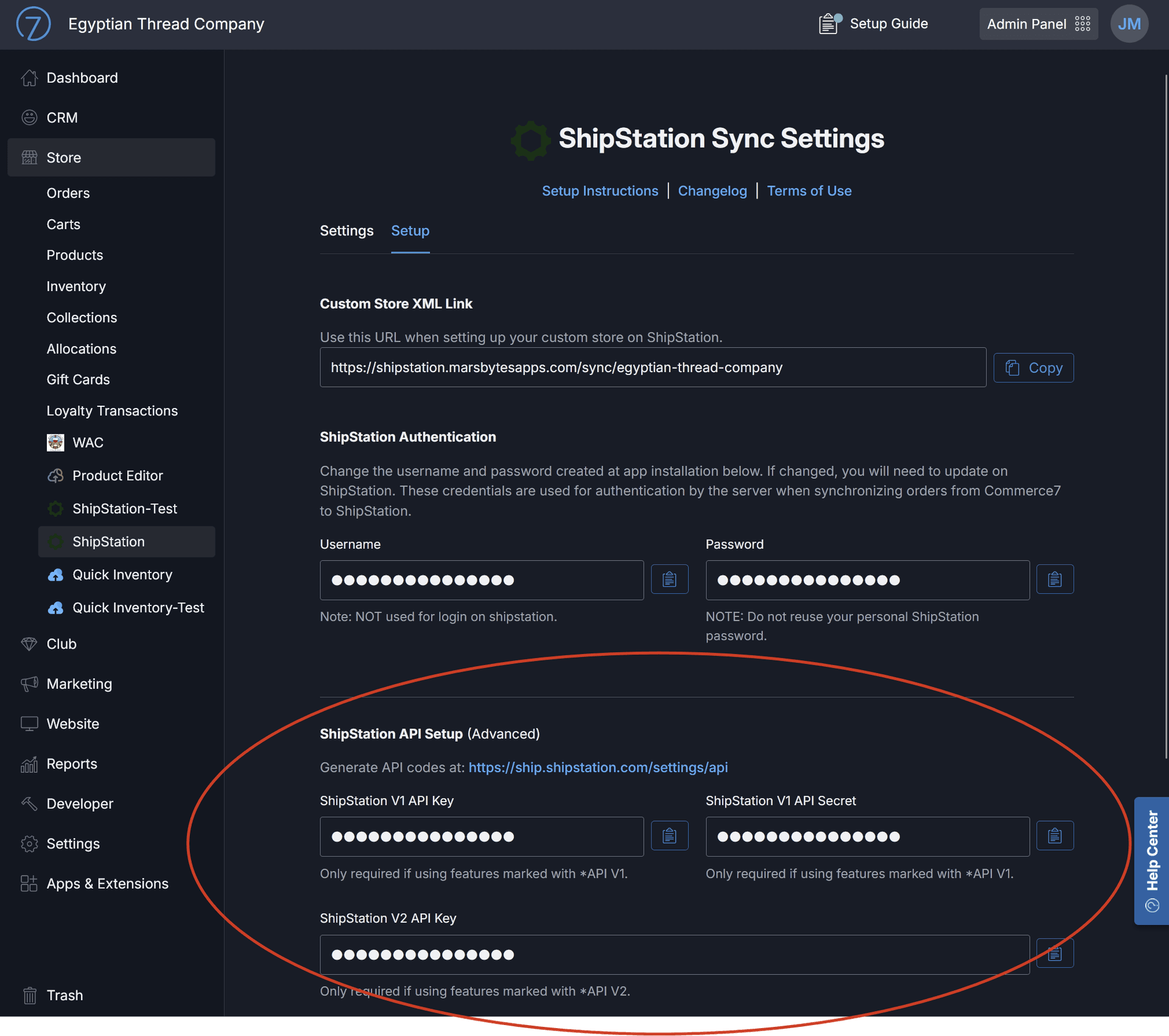
In your Commerce7 Admin Panel, go to Store → ShipStation and click the Setup tab at the top of the app page.
Enter API Keys
Paste Your Keys and Save
Scroll down to the ShipStation API Setup section. Paste your V1 key into the API Key field and your V2 key into the API Secret field, then save your settings.