Wine Pass Docs
Setting Up Club Filters
How to use Include, Exclude, and Waiting Period filters to control which club members receive tags and shared benefits across tenants in a Wine Pass group.
Overview
Wine Pass tags a customer when they are a club member at at least one other tenant in the group — that's how cross-winery membership recognition works. Club Filters let you refine which of your tenant's clubs participate in that recognition: which clubs contribute members to the group's shared pool, and under what conditions.
There are three filter types:
- Exclude — prevents members of a specific club at your tenant from being shared with the group.
- Include — restricts sharing to only members of the selected club at your tenant, effectively excluding all of your other clubs.
- Waiting Period — requires a customer to have been in a club for a set number of days before they qualify.
Filters are configured inside a group's Settings page, and within that group each member tenant has its own filter set. Because one tenant can belong to multiple groups, you may have a different filter setup in each group you participate in.
Navigate to Settings
Open the Group's Settings
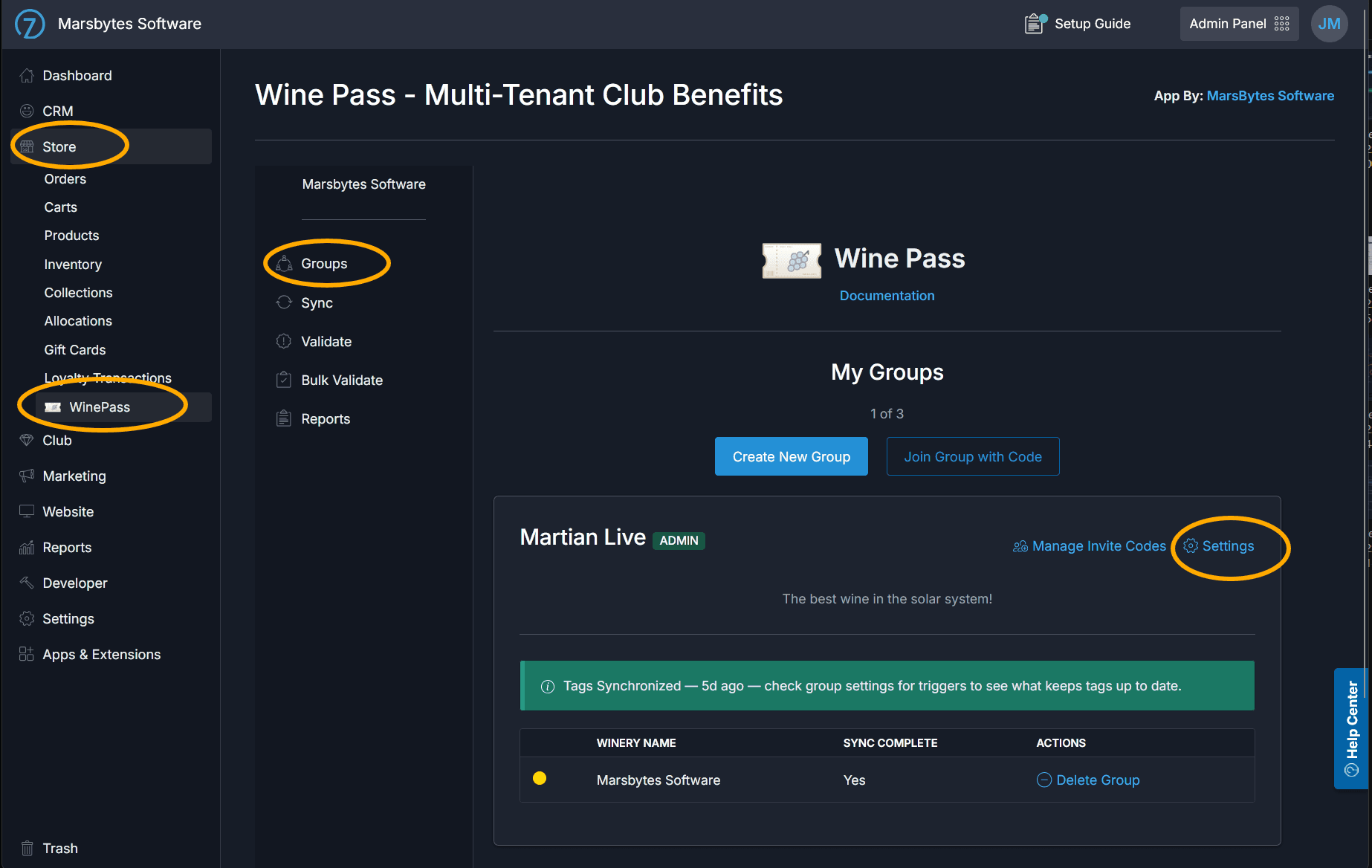
In your Commerce7 Admin Panel, navigate to the Wine Pass app and open the Groups tab. Select the group you want to configure and open its Settings.
Open the Filters Tab
Select the Filters Tab
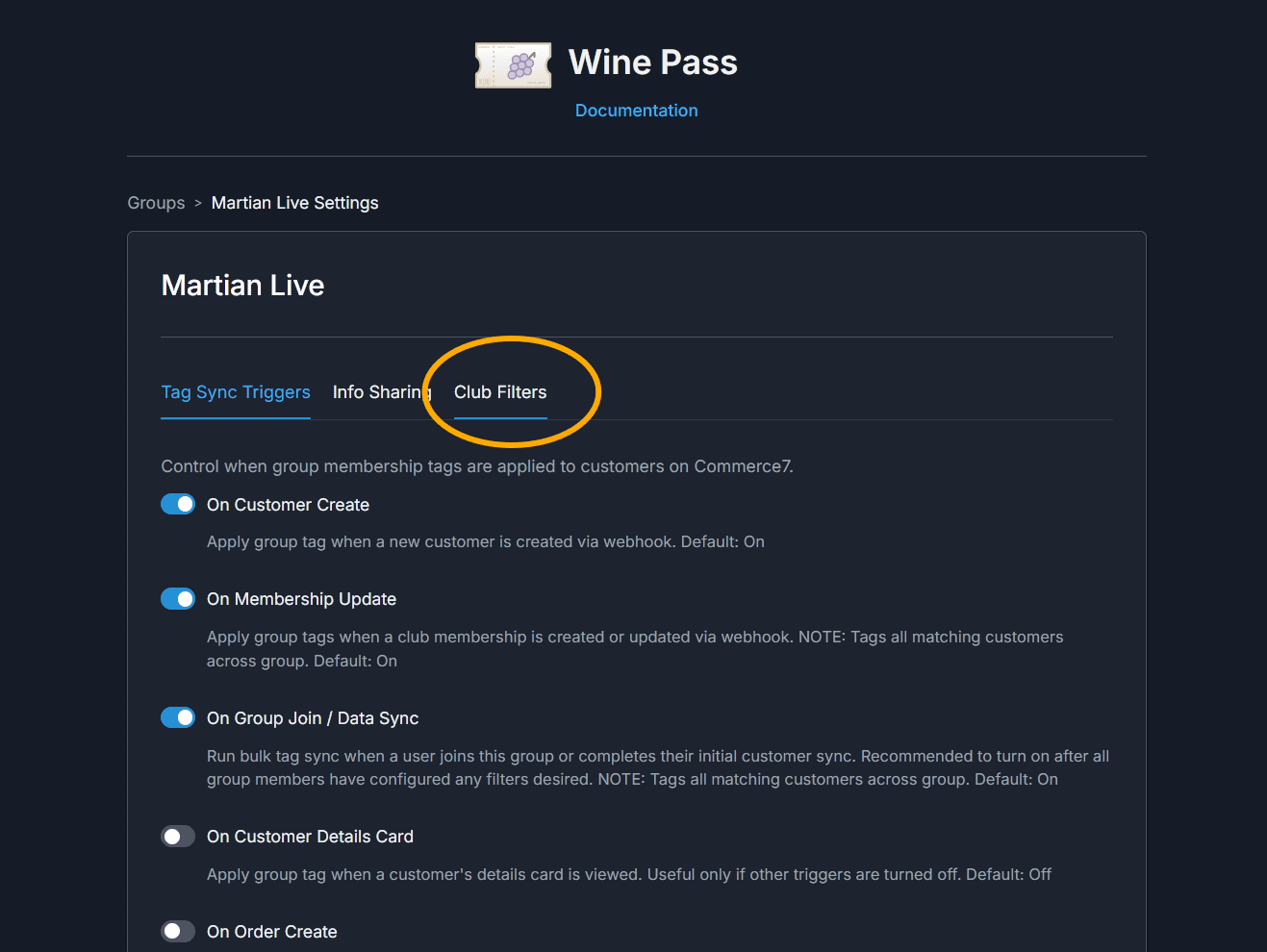
On the group's Settings page, click the Filters tab. Within a group, each member tenant manages its own filter set from this tab — the filters you create here control how your tenant's clubs feed into the group's shared membership pool.
Exclude Filter
Excluding a Club from Benefits
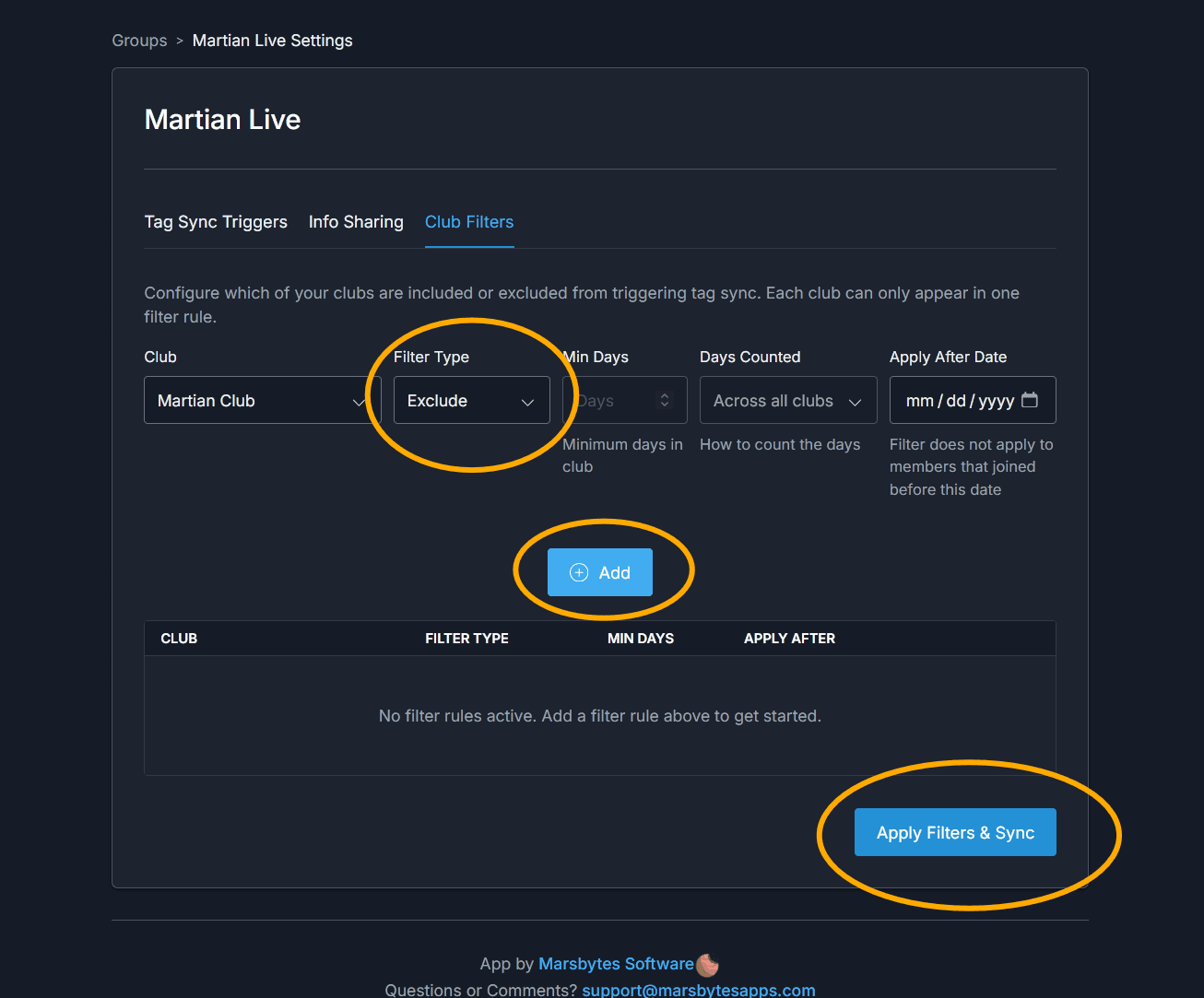
An Exclude filter prevents members of the selected club at your tenant from being shared with the group — they won't be tagged at partner tenants, and they won't receive cross-tenant benefits sourced from this group. Use this when a particular club should not participate in benefit sharing — for example, a trial or introductory club tier.
To create one, click Add Filter, select Exclude as the filter type, and choose the club to exclude.
Waiting Period Filter
Requiring a Minimum Membership Duration
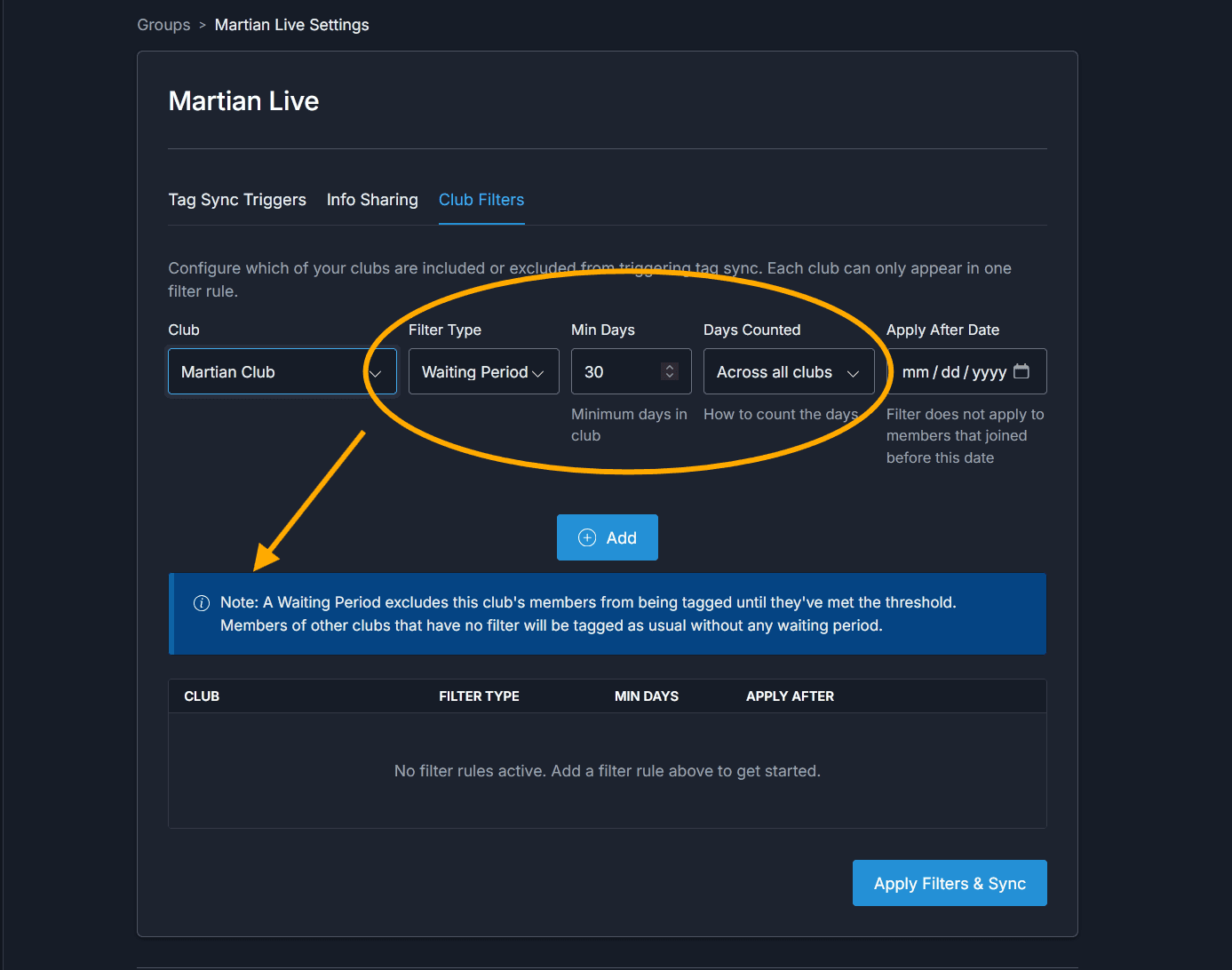
A Waiting Period filter requires that a customer has been in a club at your tenant for at least a specified number of days before they qualify for the tag or shared benefits. This uses the DaysInClub value Commerce7 provides on the customer record.
When creating the filter, you can choose the scope:
- Across all clubs — the customer's cumulative days across any club at your tenant count toward the threshold, including time spent in previous clubs they've since left or upgraded from.
- Current club only — only days spent in the customer's current club at your tenant count. Time in prior clubs is ignored.
Include Filter
Restricting Benefits to One Club
An Include filter is the inverse of an Exclude — it restricts sharing to only the selected club(s) at your tenant, effectively excluding all of your other clubs from the group. (It does not affect what other tenants in the group contribute — each tenant controls its own sharing.) You can add multiple Include filters if more than one club should qualify — it's a convenience for when only a few clubs should participate, saving you from creating an Exclude rule for every other club.
To create one, click Add Filter, select Include as the filter type, and choose the club whose members should qualify. Repeat for each additional club you want to include.
Apply After Date Threshold
How the Apply After Date Works
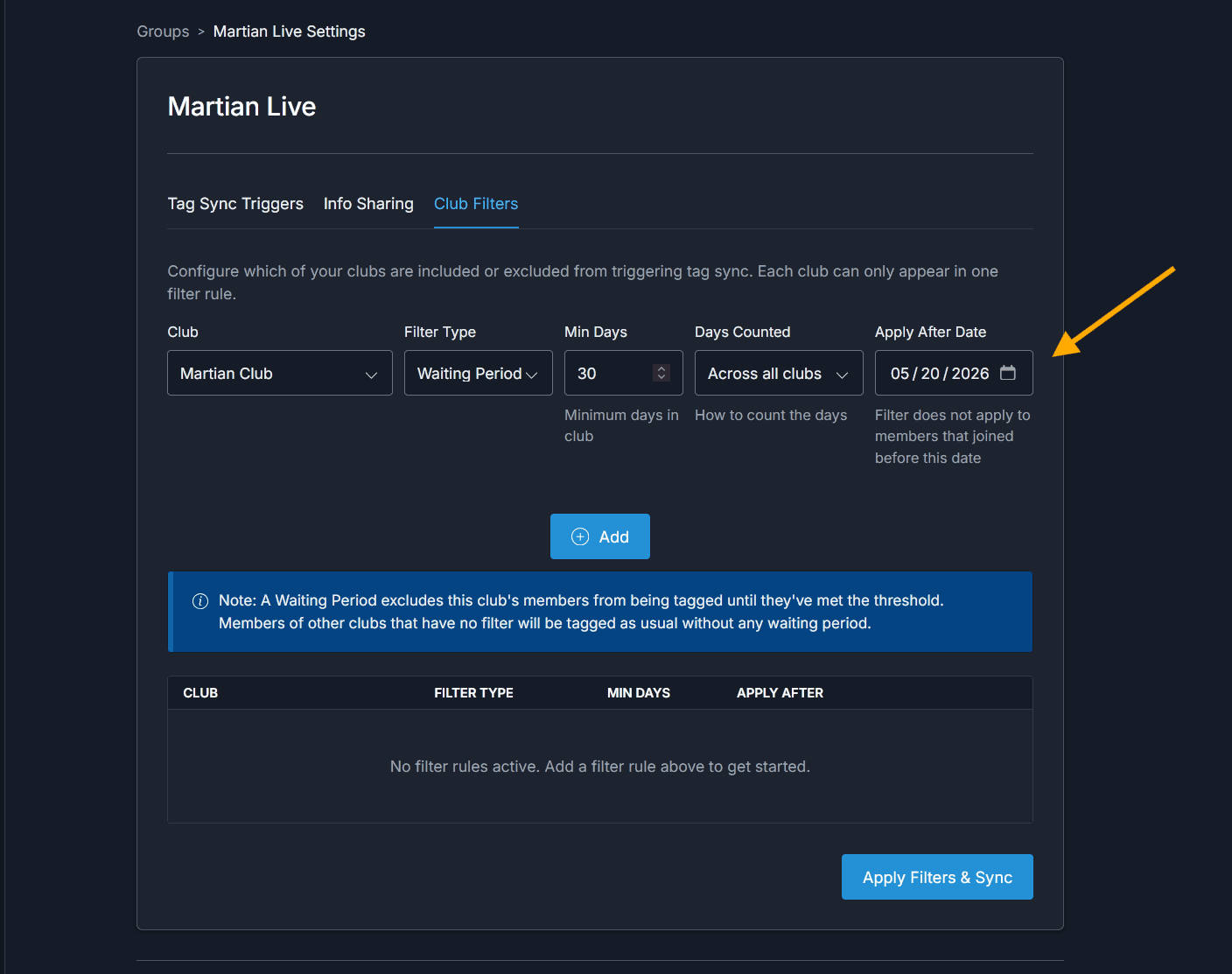
Both Include and Exclude filters support an optional Apply After Date. The date controls a "grandfather" threshold — members who joined the selected club before this date are treated as if no filter exists for them.
- On an Exclude filter: only members who joined the club after the date are excluded. Members who joined earlier are grandfathered in and continue to receive benefits.
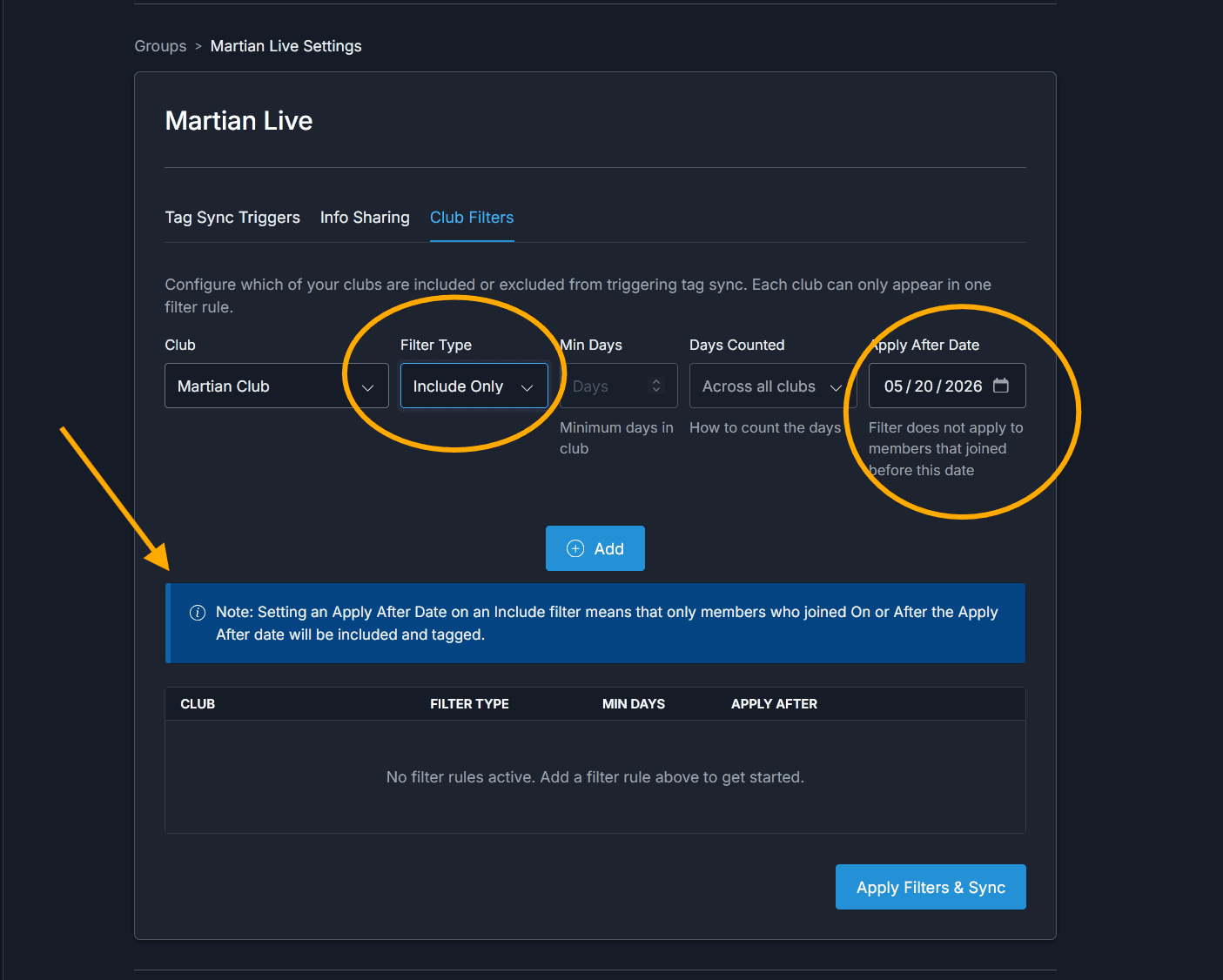
- On an Include filter: only members who joined the club after the date are included and tagged. Members who joined before the date do not qualify.
Include Filter Warning
When setting an Apply After Date on an Include filter, a warning is shown to remind you that members who joined before the selected date will not be included — this is the expected behavior, but it's worth double-checking the date before saving to avoid unintentionally disqualifying long-standing members.
Apply and Sync
Triggering a Full Group Sync
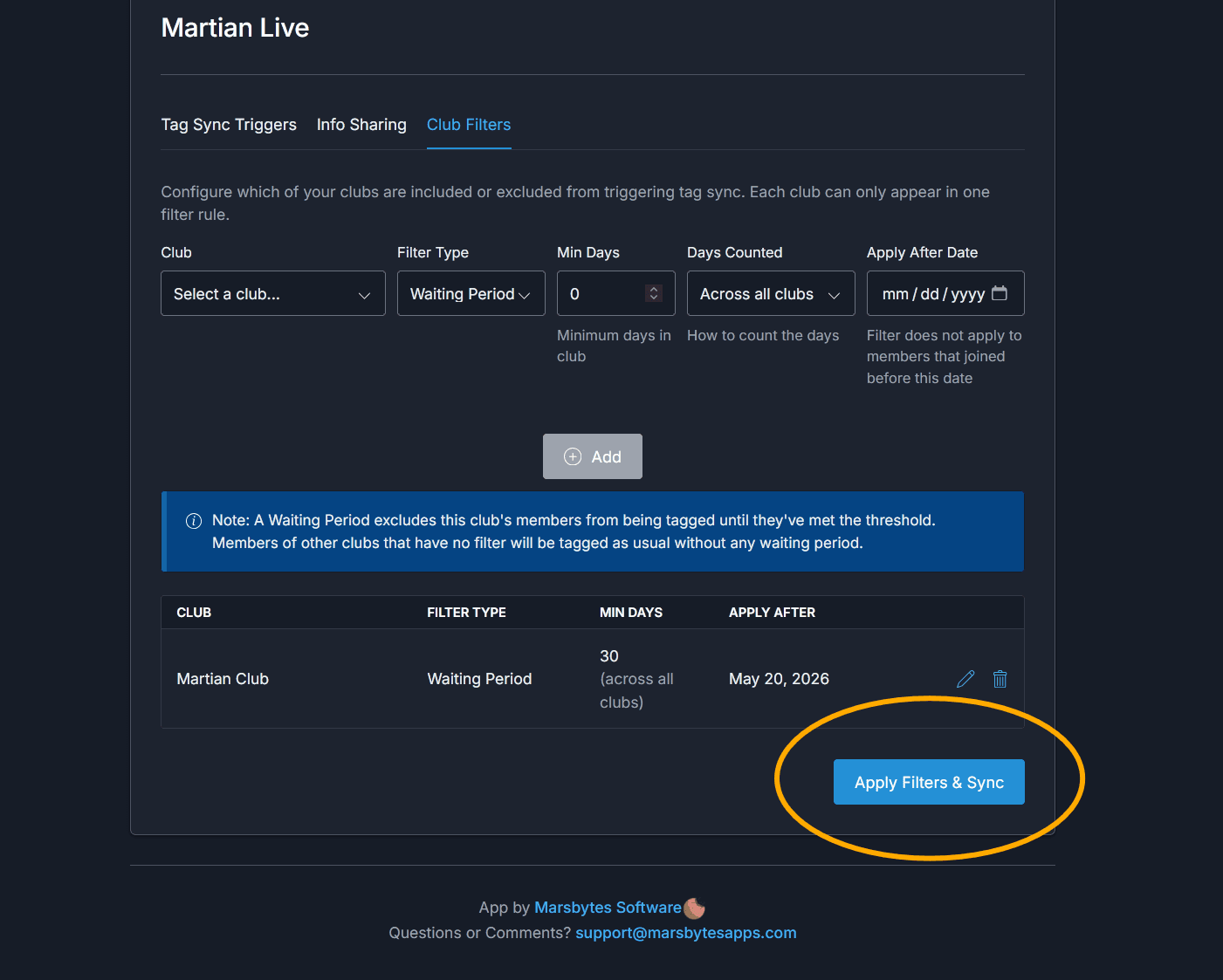
Once filters are configured across all tenants in the group, click Apply and Sync. This triggers a full sync for the entire group — tags will be added or removed from customers as the new filters apply.
Coordinate with the other tenants in your group before syncing:
- Each tenant's filters control what that tenant contributes to the group's shared pool. The sync recomputes tags across every tenant at once based on whatever filter state each tenant currently has.
- A half-configured group produces half-correct tags until the next sync — partner tenants may end up with stale or partial recognition for your customers (or vice versa) until everyone has finalized their filters.
- Only one sync can run per group at a time, and a full sync can take a while. If a sync is already in progress, wait for it to finish before triggering another.
After Syncing
Tags Stay in Sync Automatically
Once the initial sync completes, you don't need to manually trigger a sync again. Tags and membership status are kept up to date automatically based on the Tag Sync Triggers configured for the group.
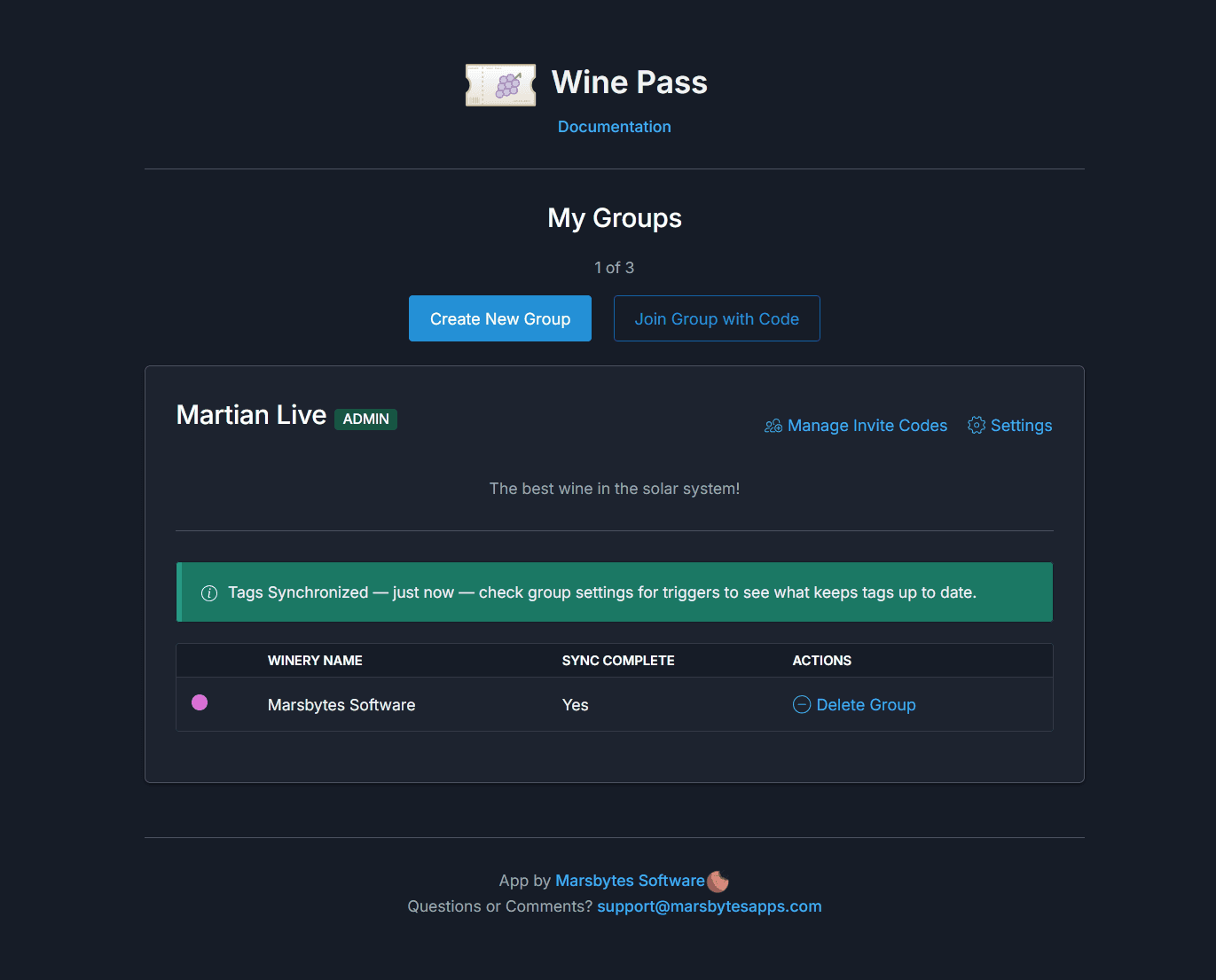
Check the Tag Sync Triggers section under the group's settings to review what events keep tags in sync. Defaults include:
- On Customer Create — newly created customers are evaluated immediately.
- Membership updates — tags adjust when a customer joins, changes, or leaves a club.
- New tenant joins the group — re-evaluates tags across the group when membership in the group itself changes.
You only need to use Apply and Sync again if you change filter rules or want to force a full re-evaluation.